Overview
This article covers the operation and use of the address fields within:
- Cumulus
- the Sign Up Portal
- the End User Portal (not including US)
The capture and storage of address information into Emersion happens on various screens for a variety of reasons. In almost all cases, our address fields are standardised and support international address. This ensures consistency and integrity of contact-related data across the system.
Across the system, in Cumulus, Sign Up Portal and the End User Portal, the presentation and functionality of the address fields is identical.
The functionality described here does not apply to service addresses.
Only standard address can support the function of search address using the data sources.
If an address is not in the data store, it cannot be populated.
Address Data Sources
Addresses are populated from multiple data stores. Within Australia, Emersion sources address data from GNAF. For addresses in the United States, Emersion sources address data from Smarty Streets APIs. For addresses outside the Australia and the US, Emersion sources these from Google.
The Search Address field enables users to start typing an address and have the full address returned to them.

Display Types
There are 4 types of address display:
- standard - Basic
- standard - Advanced
- postal
- unstructured
Country-Specific Fields
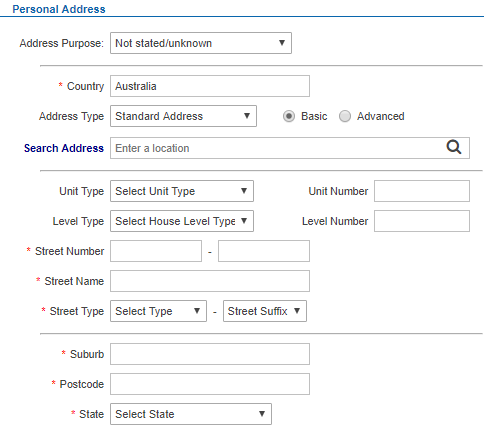
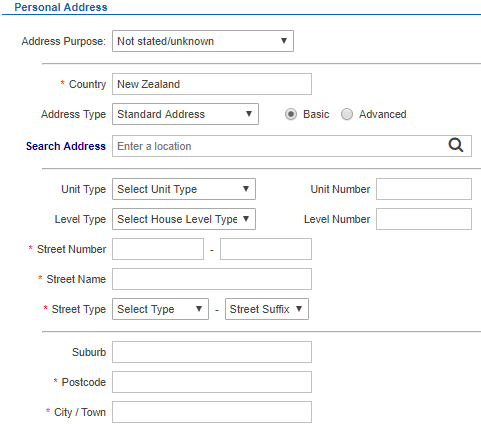
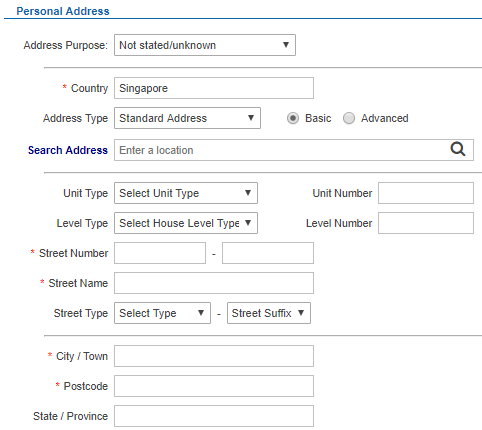
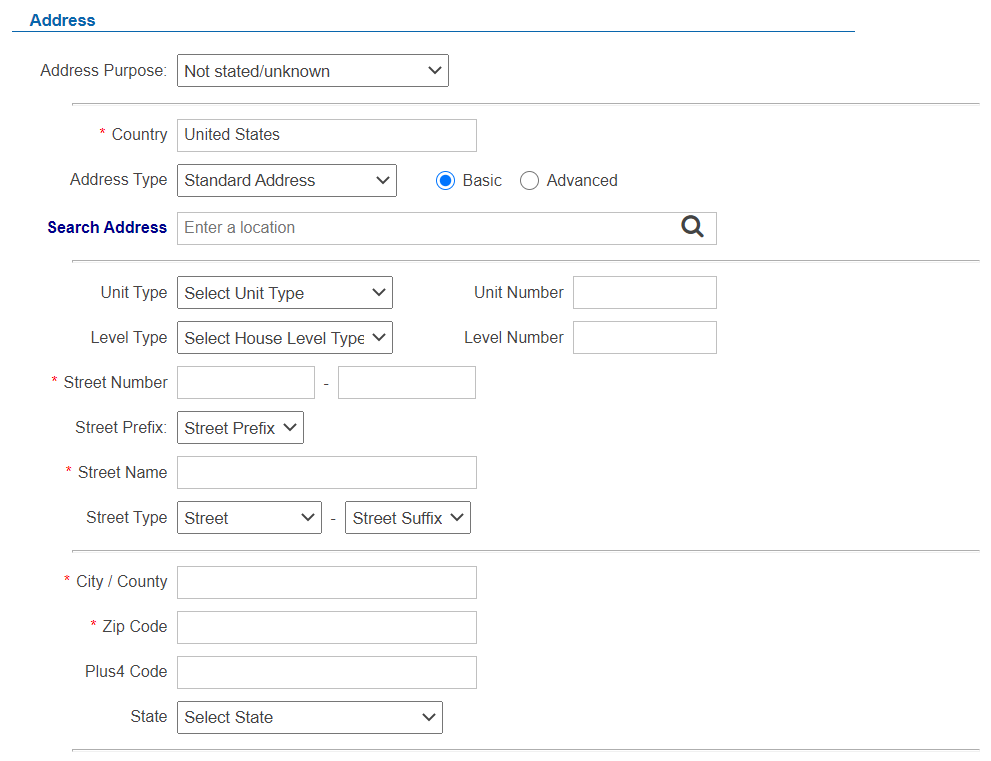
Based on the country chosen, the fields may change on the form to show fields appropriate for the country.
Country = Australia
Country = New Zealand
Country = Singapore
Country = United States
Display Modes
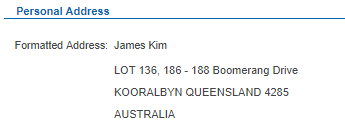
Addresses are displayed in two 'modes'. View and Edit mode.
View Mode
Edit Mode
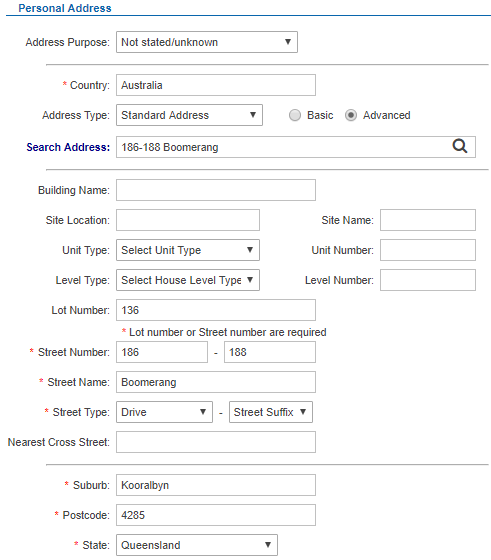
Address Field Definition
There are 4 types of address display:
- standard - basic
- standard - advance
- postal
- unstructured
| Field | Description | Basic | Advanced | Postal | Unstructured |
|---|---|---|---|---|---|
| Search Address | Smart search field to return a known address that can then be used in the form | X | X | - | - |
| Unit Type | A list of unity types | X | X | - | - |
| Unit Number | Enter the unit type number | X | X | - | - |
| Level Type | A list of level types | X | X | - | - |
| Level Number | Enter the level type number | X | X | - | - |
| Street Number | Street number 1 and 2 fields. E.g. 103 - 108. Street or Lot is mandatory | X | X | - | - |
| Street Name | The name of the street | X | X | - | - |
| Street Type | The type of street | X | X | - | - |
| Street Suffix | X | X | X | X | |
| Suburb (or City / Town) | X | X | X | X | |
| State (or City / Town or State / Province) | X | X | X | X | |
| Postcode | X | X | X | X | |
| Building Name | X | ||||
| Site Location | X | ||||
| Site Name | X | ||||
| Lot Number | X | ||||
| Nearest Cross Street | X | X | |||
| Postal Delivery Type, | X | ||||
| Postal Delivery Number | X | ||||
| Address Line 1 | X | ||||
| Address Line 2 | X | ||||
| Zip Code (US) | X | X | X | X | |
| City / County (US) | X | X | X | X | |
| Plus4 Code (US) | X | X | X | X | |
| Prefix (US) | X | X | - | - |
Copy Address From
In many screens, users have the ability to take an address they have entered previously against the customer account and use it in a new contact, preventing the need to type the same address over and over again.
To do this:
Select an address from the Copy Address From field.
Entering Addresses
To enter an address:
- Start by entering the Country. The country will auto-complete and present the relevant fields for the standard basic address for that country.
- Choose the address type.
- If standard, choose from Basic or Advanced via the radio buttons.
Then;
- In the Search Address field, start entering the full address. The system will attempt begin a search and present matching addresses.
- Select the correct address.
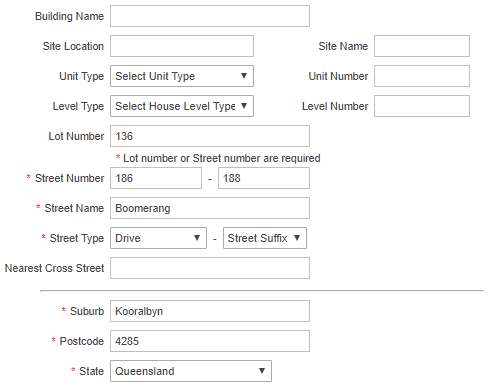
The address fields will be populated. Check all fields.
Importing Addresses
See our address import tool for importing addresses against contacts.