Overview
This article guides users on how they can update a pending cardline and assign a profit centre to it, or to update the cardline with a new profit centre value that is different to one assigned by the system.
This article has been written for users of Cumulus.
New Unallocated Cardlines
To choose how a profit centre is linked to a new unallocated cardline, log in to Cumulus and navigate to Customer > Pending Cardlines > Create New Unallocated Cardline. To apply the profit centre that is associated with the service subscription, choose Select a Service. To allocated the profit centre manually, choose Apply Manually.
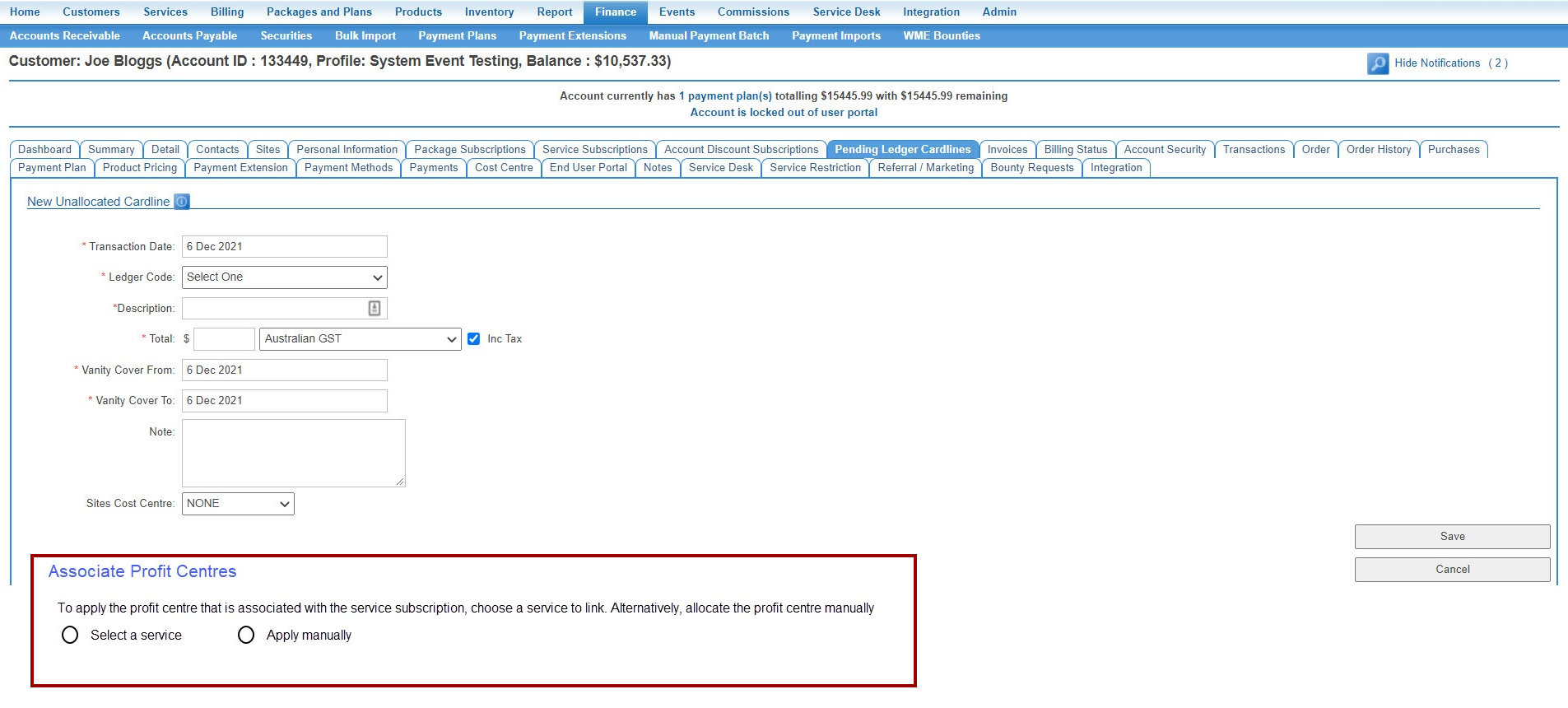
Select a Service
If the Select a Service option is chosen, the Find a Service button will appear. Once the service is found and selected, they will be displayed in a window (see image below).
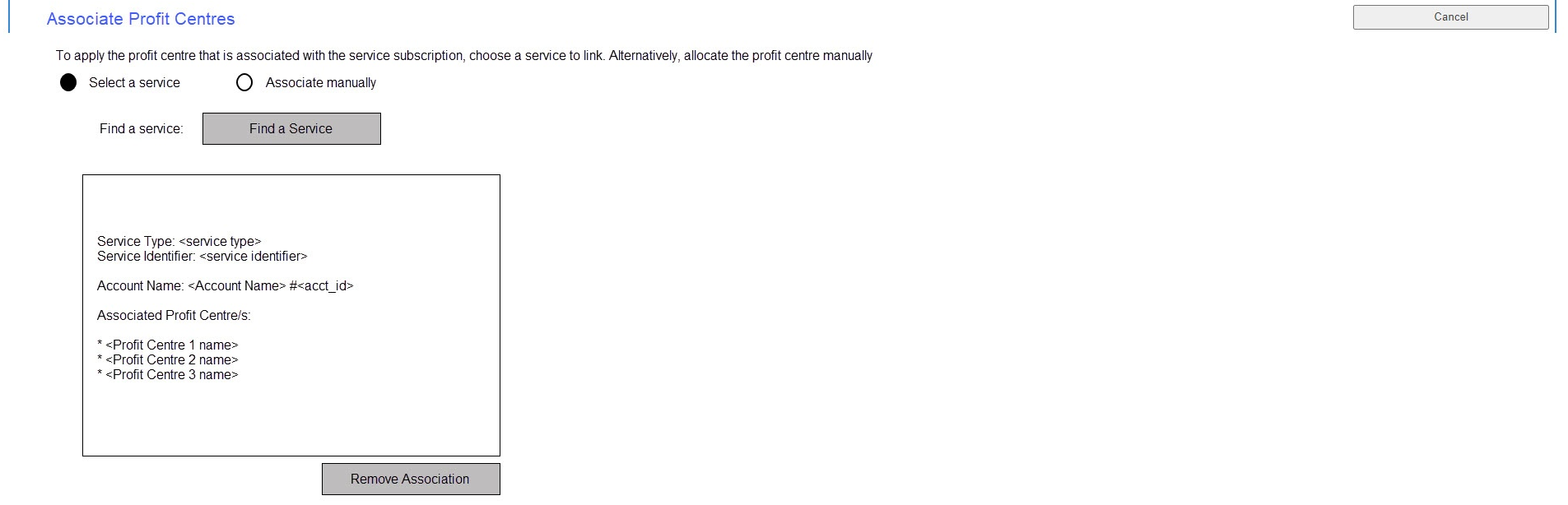
Editing or Deleting the Association
A profit centre association can be edited or deleted until the cardline is saved, after which the normal business rules for editing associations will apply. If the wrong service is linked, the association can be removed by clicking Remove Association.
Manual Association
If the Apply Manually option is selected, the Associate Profit Centres button will appear. When pressed, a window will appear which allows profit centres to be linked to a service plan.
Editing or Deleting the Association
A profit centre association can be edited or deleted until the cardline is saved, after which the normal business rules for editing associations will apply. If the wrong service is linked, the association can be removed under the Action column by clicking Remove.
Create Immediate Invoice
When the Create Immediate Invoice button is pressed, the system will check to see if the chosen cardlines have a profit centre attached.
- For those that are already attached, the system will check that the association is correct and update it if not.
- For those that are not attached, the system will look up the profit centre and attach it.
Update Selected Cardlines
On the Accounts Receivable > Pending Cardlines page there is a feature called Update Selected Cardlines, which enables users to allocate selected cardlines to invoices.
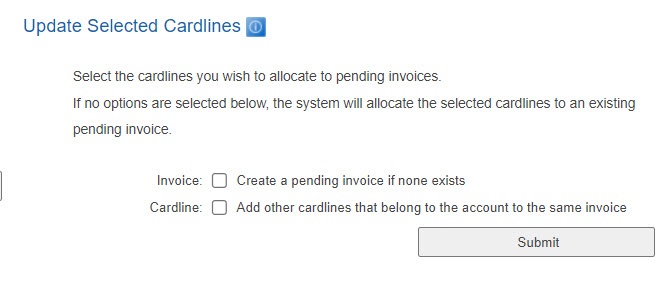
When Submit button is pressed, the system will check to see if the chosen cardlines have a profit centre attached.
- For those that are already attached, the system will check that the association is correct and update it if not.
- For those that are not, the system will look up the profit centre and associate it.
Pending Cardlines > Edit Cardline
There are two Pending Cardline pages:
- Finance > Accounts Receivable > Pending Cardlines
- Customer > Pending Cardlines
Pending cardlines can be edited by pressing the magnify icon on a cardline. This window provides a way to associate a profit centre.
Manage Invoice
Editing Allocated Cardlines
Under Allocated Cardlines, cardlines can be edited by clicking the magnify icon. Click the Associate Profit Centre button to open the dialogue box below.
To apply the profit centre to the cardline, either select a service to link the cardline to or allocate the profit centres manually. If you choose to link a service, the system will stamp the profit centre assigned to the service plan, unless overridden.
Select a Service
If the Select a Service option is selected, the Find a Service button will appear. When pressed, a window will appear which allows profit centres to be linked to a service plan.
Edit or Delete the Association
A profit centre association can be edited or deleted until the cardline is saved, after which the normal business rules for editing associations will apply. If the wrong service is linked, the association can be removed by clicking Remove Association.
Manual Association
If the Apply Manually option is selected, the Associate Profit Centres button will appear. When pressed, a window will appear which allows profit centres to be linked to a service plan.
Editing or Deleting the Association
A profit centre association can be edited or deleted until the cardline is saved, after which the normal business rules for editing associations will apply. If the wrong service is linked, the association can be removed under the Action column by clicking Remove.
Add New Cardline to Invoice
This function works similarly to creating an unallocated cardline and editing allocated cardlines. If a service needs to be linked, the Find a Service function will limit the search to services that exist under the account.
Allocate Pending Cardlines
Here, a list of pending cardlines that are not attached to an invoice will be shown. When the Add Pending Cardlines button is pressed, the system will check to see if the chosen cardlines have a profit centres attached.
- For those that are already attached, the system will check that the association is correct and update it if not.
- For those that are not attached, the system will look up the profit centre and associate it.