Overview
This article explains how to configure the sign up portal so that it automatically populates the customer's address and use this address in a service qualification.
Before attempting to configure the feature, ensure you understand the limitations and address fields that are able to be used in this way.
Configuration
The sections below contain the steps on how to configure the feature.
Step 1: Add an Agent Code to the Agent's Org Unit
Log in to your Retail Service Provider Account
Admin > Org Unit & Roles > Org Unit
- Search for the Org unit that belongs to the Agent.
- Click on the ID to open the Org Unit
- Enter a unique code for the agent in the Org Unit / Agent Code field. Use only alphanumeric characters.
While Cumulus allows users to enter any text string into the Org Unit / Agent Code field, this particular feature uses this agent code in the formation of a special URL.
Emersion does not support unsafe characters in URLs. Refer to this article for a chart showing safe and unsafe characters that can be used in within a URL. If you are not sure, use only letters, numbers and underscores as these are safe.
Step 2: Construct a Sign Up URL for your Agent's Orders
Once you have an agent code, you can create a URL that includes the agent code as a parameter. By 'passing in' the agent code to the sign up portal using this method, the order will always be attributed to the agent in the same way as if the agent had logged into Cumulus and placed the order themselves.
The format of the URL is as follows:
https://yoursignup.yourname.com.au?agent_code=xxxxxx -- where xxxxxx = agent code
If the agent code is passed into the sign up portal, the order will always be attributed to the agent, regardless of whether address population is configured.
Step 3: Add an Address (site) to the Agent
Once the previous steps are complete, users need to configure the address fields that will be populated in the Sign Up Portal.
Customer > Customer List
Search for and locate the agent's customer account. Click on the ID of the account to open the Customer Screen. Click on the Sites tab. The Sites list will be displayed.

This section supports multiple addresses, but only one address can be used to populate fields in the Sign Up Portal. The default address will be used in the sign up portal.
- Click on the Add New Site button to add a new address.
- Ensure the Set As Default Site is enabled.
- Complete the fields that will be populated in the sign up portal.
- Press Save when you are done.
Address fields in the Sign Up Portal that are not populated will need to be completed by the user during the order.
Step 3: Test the URL
Open a web browser and test the URL that was created in the second step. Proceed through the order to ensure address fields populated in Cumulus are populating in the address-based SQ.
Cumulus vs Sign Up Portal Page Comparisons
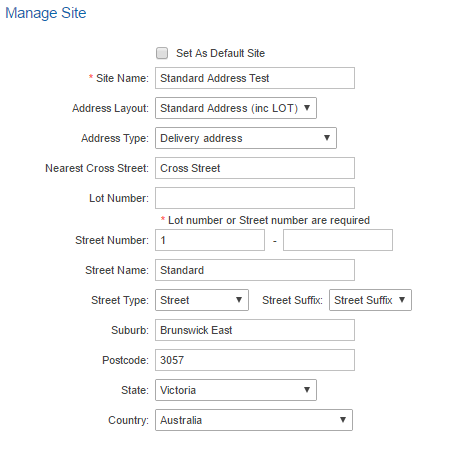
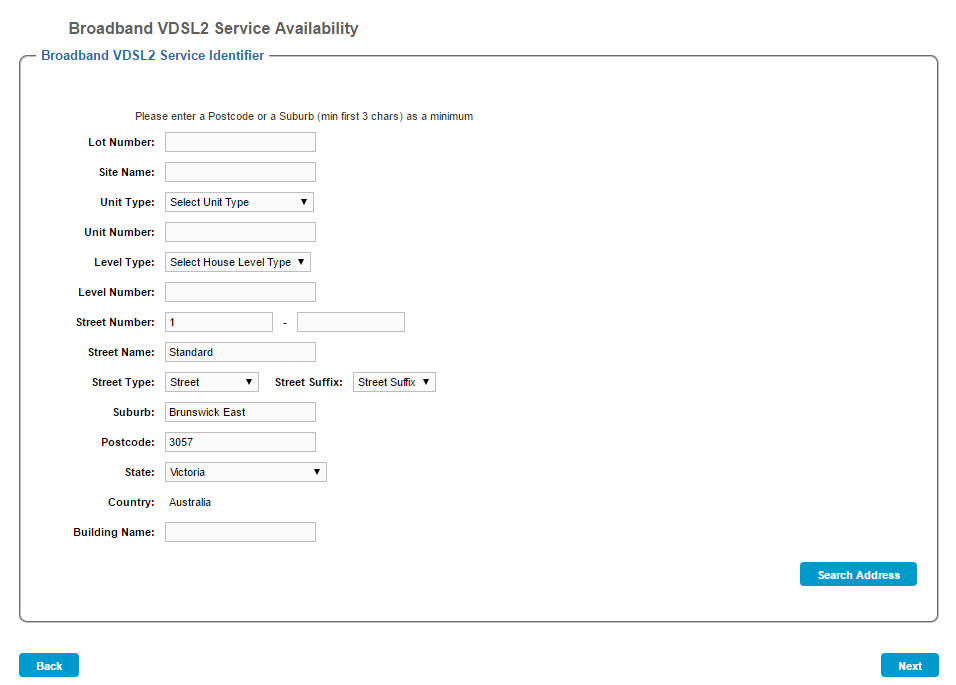
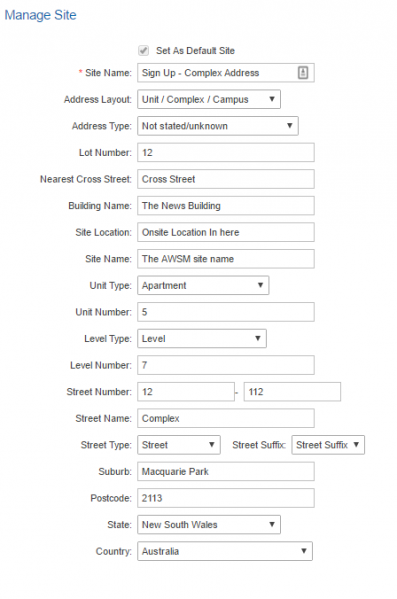
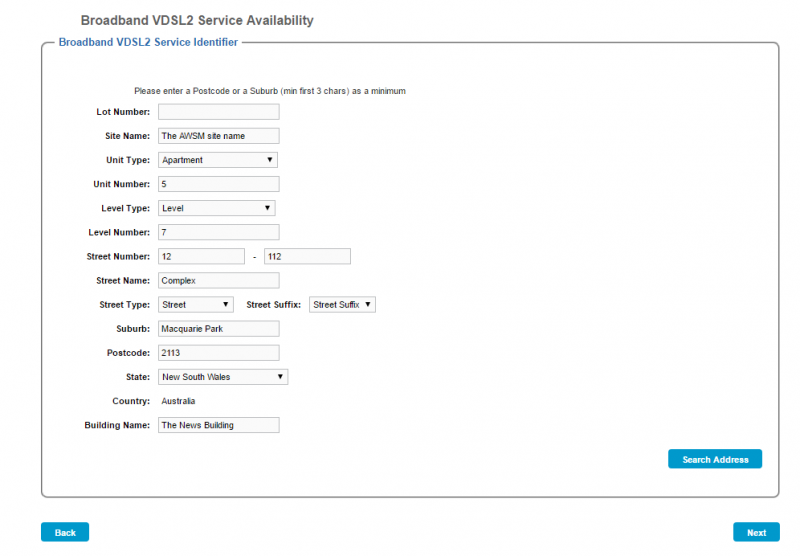
Below are side-by-side comparisons of standard and unstructured addresses once the system is configured correctly. These are your expected results.
Complex Address
| Cumulus | Sign Up Portal |
|---|---|
|
|
Standard Address
| Cumulus | Sign Up Portal |
|---|---|
|
|