Overview
This section describes how to configure Cumulus to connect to a mailbox, download mail & create a ticket from each individual mail item.
You must already have setup a mailbox for the inbound mail on your own mail server. You may need to talk to your system administrator for further assistance.
This facility is not to be used for collecting network operations emails, outage notifications and other such NOC-based alerts.
If it is discovered you are attempting to parse these types of emails, Emersion reserves the right to disable your inbound email extension without notice.
Manage Mailboxes
This section gives service providers the ability to configure the system to integrate with the mailbox on your server. To access this page:
Service Desk > Manage Mailboxes
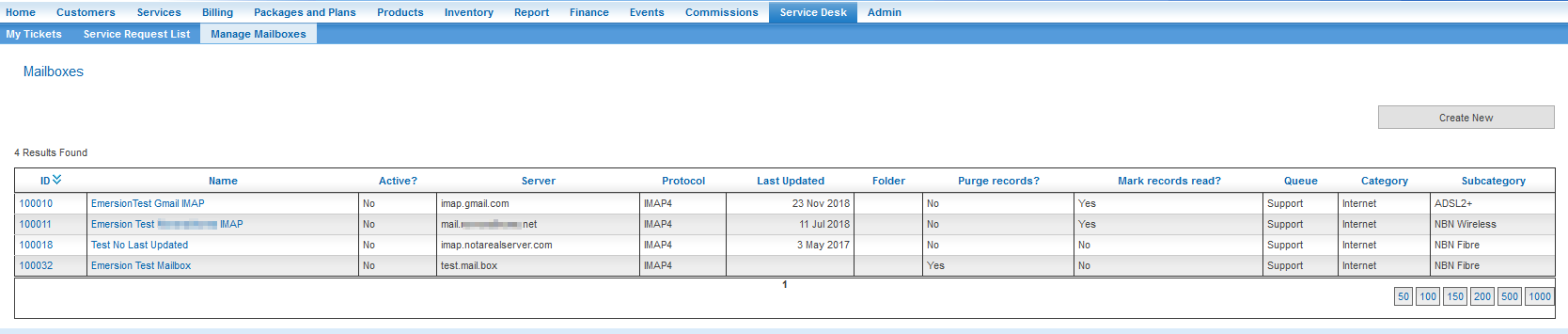
If you use multiple mailboxes for different types of queries in your business, you will need a mailbox configuration for each mailbox.
For example, a company may want emails sent to accounts@mycompany.com.au to create tickets in an Accounts queue, while emails sent to techsupport@mycompany.com.au will create tickets in the Support queue.
Your systems administrator will have set up 2 mailboxes to enable this to happen. In Emersion, you will create a mailbox configuration for each mailbox.
From this page you can either;
- Edit an existing mailbox by clicking on the ID or Name
- Create New mailbox by clicking the Create New button
Create a New Mailbox
Once you have the mailbox information provided to you by your systems administrator, you are ready to configure the mailbox rules and configuration in Emersion.
Service Desk > Manage Mailboxes
Click the Create New button.
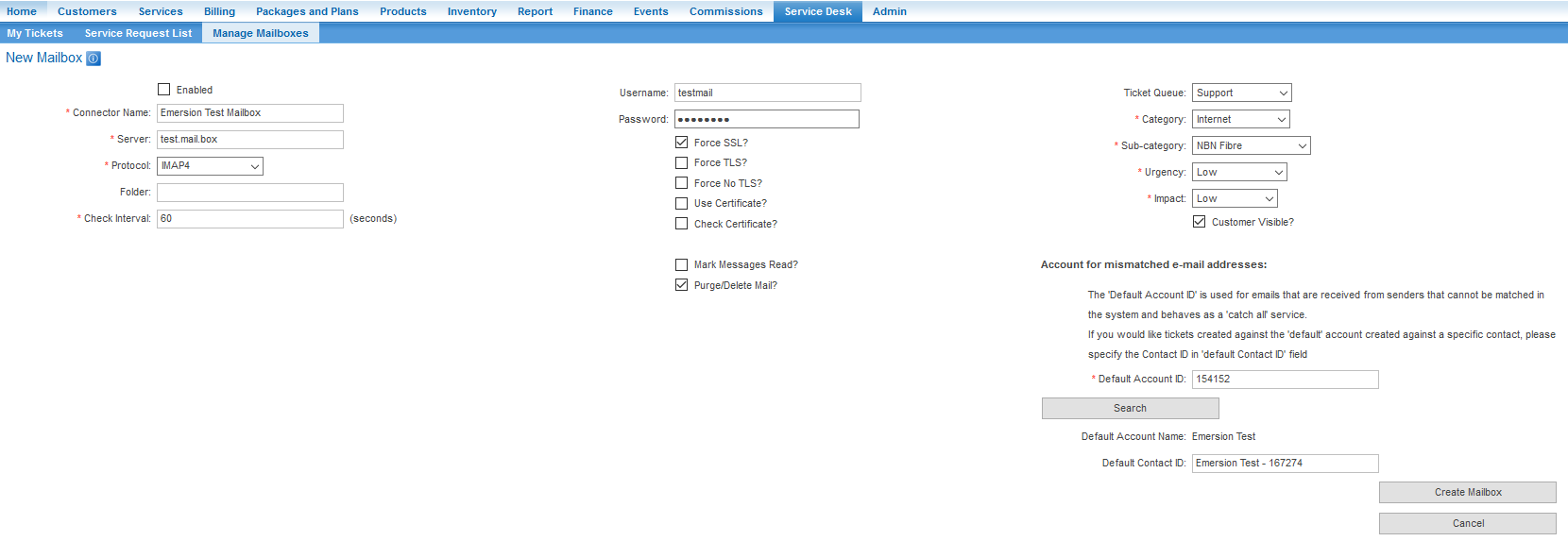
You will be taken to the New Mailbox screen. Complete all sections as required. Further details about the sections and fields is detailed below.
Press Create Mailbox to create and save the configuration.
Settings
The settings on the new and edit mailbox pages can be grouped into three categories:
- Mailbox settings
- Security settings
- Ticket Behaviour settings.
Mailbox Settings
These settings pertain to the mailbox itself.
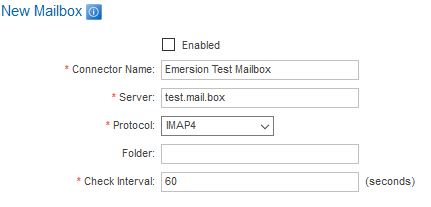
| Enable | Check this box to enable the mailbox configuration. Uncheck to disable it |
| Connector Name | Give a name to this mailbox configuration. One that will make sense to you. |
| Server | The host name of your mail server. E.g. outlook.office365.com or imap.gmail.com. |
| Protocol | Select a protocol from the list. If POP3 is chosen, some security settings will become unavailable to you due to the lack of support by the protocol itself. |
| Folder | Enter a folder name if directed to by your Systems Administrator. |
| Check Interval | This is in seconds and tells the system how frequently to check for new emails. 600 seconds (10 minutes) is the recommend setting. Emersion reserves the right to increase the frequency of this interval should it be set under 5 minutes. |
| Username | The username for the mailbox |
| Password | The password for the mailbox |
Security Settings
These settings pertain to the mailbox itself.
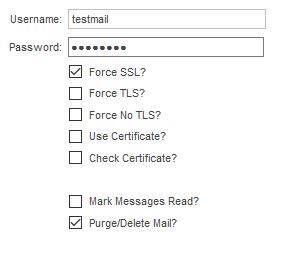
| Force SSL? | If your mail server supports SSL, tick this option if you want to use it.
| ||||||||||
| Force TLS? | If your mail server supports TLS, tick this option if you want to use it. | ||||||||||
| Force No TLS? | If your mail server supports TLS, tick this option to ensure it is not used. Tick this option if you do not want to use security at all. | ||||||||||
| Use Certificate? / Check Certificate? | This requires either Force SSL? or Force TLS? to be ticked. Tick both options to have the system be aware of your certificate. | ||||||||||
Mark Messages Read? | This checks for unread messages and downloads them into the system. This option is not available for POP3 | ||||||||||
| Purge/Delete Mail? | The following expectations should apply when different combinations of these last two settings are used. Read and Purge Settings Matrix
Failure to understand this particular combination of settings could result in many thousands of previously-read emails being imported into Emersion. Cleaning up these erroneous emails as a result of incorrect mailbox configuration is a chargeable work request. |
Ticket Behaviour Settings
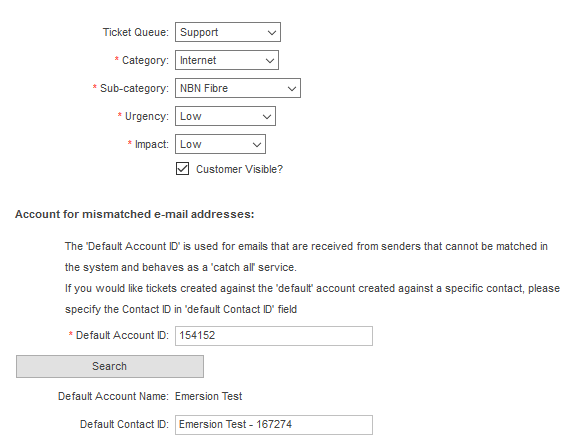
The collection of fields defines how tickets will be created in the system from a downloaded email. When a new ticket is created in Cumulus or the End User Portal, the ticket creator need to define a queue, category, sub category and other mandatory fields. These settings will achieve the same objective. Choose which fields should be assigned to the ticket when it is received via email.
| Ticket Queue | All tickets created via email will be assigned to this queue. |
| Category | All tickets created via email will be assigned to this category. |
| Sub-category | All tickets created via email will be assigned to this subcategory. |
| Urgency | All tickets created via email will be assigned to this urgency rating. |
| Impact | All tickets created via email will be assigned to this impact rating. |
| Customer Visible | Will allow additional notes on the created service desk request to be customer visible by default. This can be overridden when adding new notes to a ticket. |
| Default Account ID | In the case where the sender's email address cannot be found in the system, the ticket will be assigned to this account. You can click on Search to find an appropriate account. We recommend setting up a separate end user account with a generic name like 'Catch All Account' or similar. If a default contact is not supplied, the primary contact of the selected account is used. Tickets can then be easily sorted by this account and then Identified to the correct account and contact |
| Default Contact ID | Used in conjunction with the Default Account ID. This drop down list will display the contacts available under the selected Account |