Overview
This article explains how to configure the system to apply a late fee to customers.
Unlike the early payment discount, this late payment fee does not rely on the invoice being fully paid, rather will apply a late fee to an invoice that remains fully unpaid.
Emersion's system supports the application of a late payment fee under multiple scenarios. See this page for others if this version is not the one you are looking for.
To see the main page about the feature, click here.
Configure a Default Late Payment Fee
To configure the default late payment fee, go to:
Admin > Settings > Service Provider Defaults > Discounts and Fees
Scroll down to Late Payment Fee - On Overdue Invoice section.
When viewing the settings page, the system will display how many accounts have the late payment fee applied, and how many customers have custom settings.
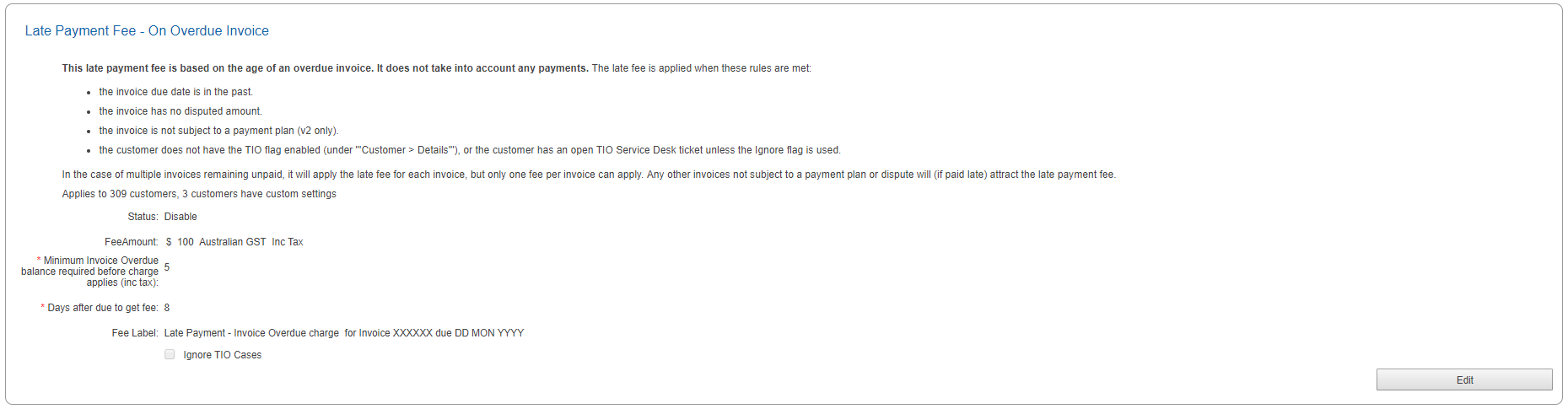
Click the Edit button to change the settings.
| Field | Description |
|---|---|
| Status | Enable or disable the late payment fee. Select from: Enable to enable the fee. Disable to turn the fee off. Inherit to enable for all newly created customers.
|
| Fee amount | The discount can be offered as a flat $ fee, or a percentage of the total value of the invoice. Credits will be created as a pending card line to be picked up by the next invoice run. |
| Days after due to get fee | The number of days after the invoice due date when the fee is applied. |
| Fee label | Text for the card line. |
| Ignore TIO cases | Enabling this flag will apply the late payment fee even if the customer has the TIO flag set, or has an open TIO Service Desk ticket. This overrides the default business rule |
Press the Save button to change the settings.
Account-Level Override
To override these settings for a single account:
Customer > Details > Late Fee Invoice Ages
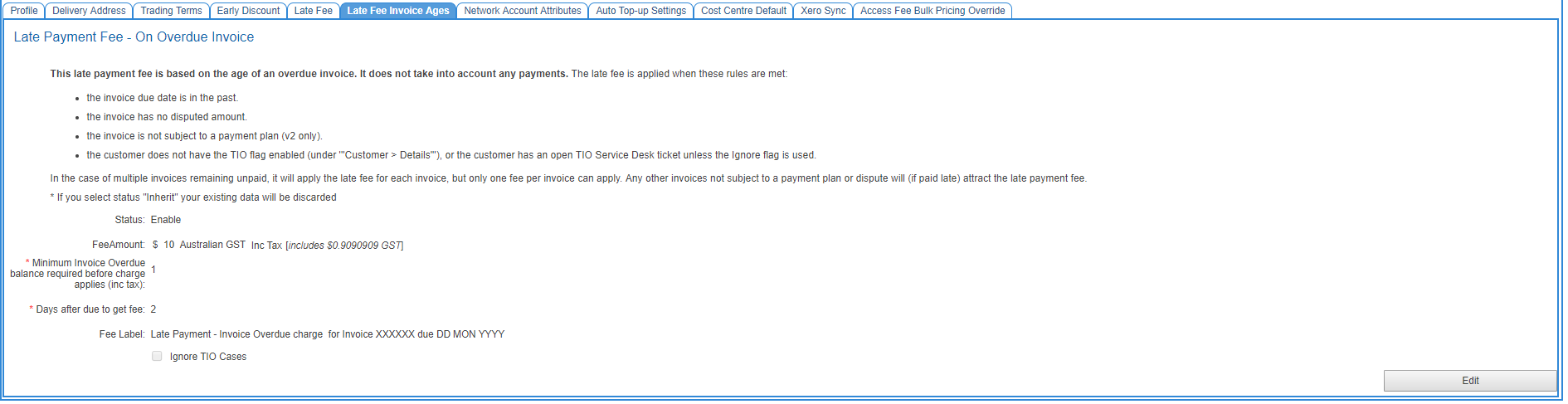
Adjust each of the above settings as needed. These settings will apply only to this account.
Press Save when complete.