Overview
This article explains how to create a payment plan.
For updating an existing payment plan, please see the article here.
Before You Start
A valid payment gateway merchant will need to be configured, and a payment method configured against the customer needing the payment plan.
Please see the Automated Payment Fundamentals article for more information on payment merchants.
Please see the Payment Plans Fundamentals article on the requirements before attempting to create a payment plan.
Creating a New Payment Plan
Customer > Payment Plan > Create Payment Plan
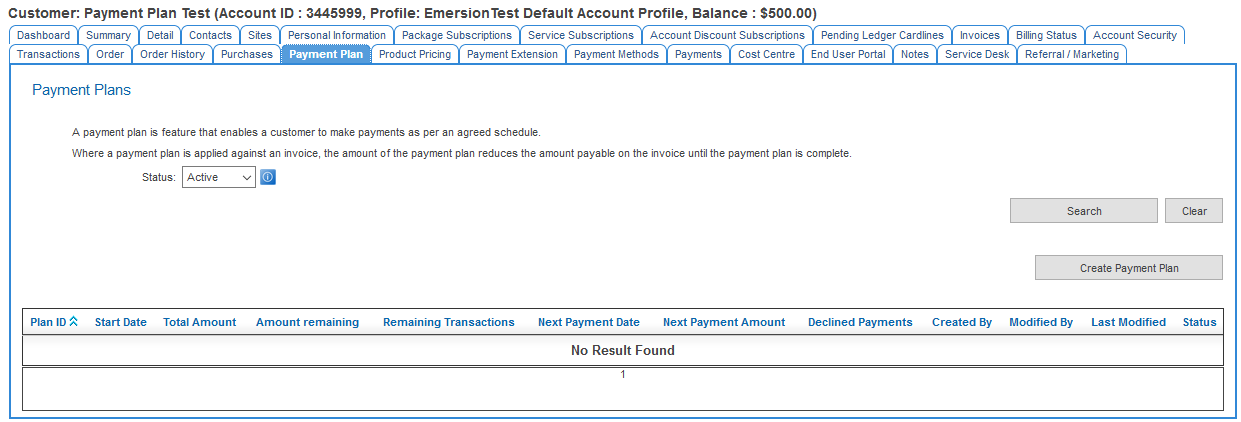
Select Invoices
In the first step of the wizard, the system requests users to select invoices and amount for each invoice to be covered to the payment plan.
By default, the amount shown in the Amount To Pay field will be the total amount outstanding for the invoice. This can be updated as required, but cannot exceed the Maximum To Pay amount shown.
If the amount to pay for an invoice is less than the maximum to pay amount, the amount remaining may still be taken via automated payments and/or have notices issued by the invoice overdue system event
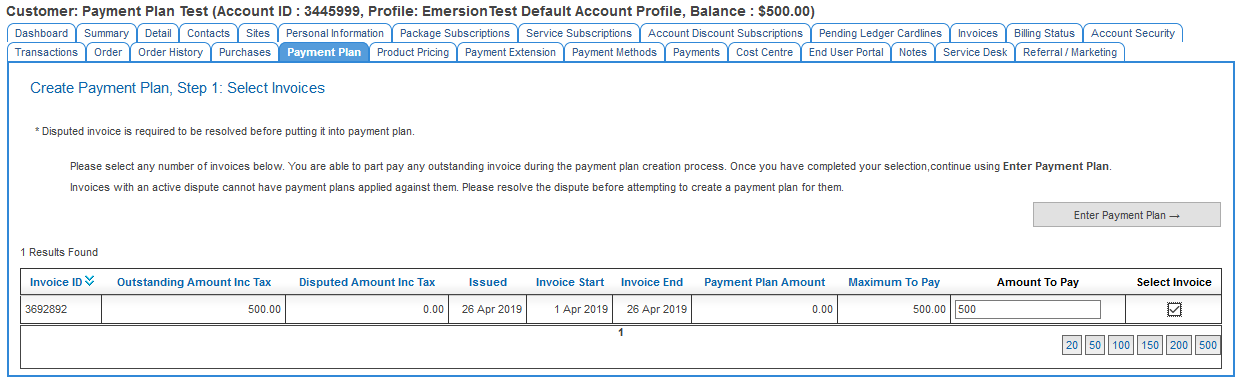
Once you have selected the invoices andthe amount from each invoice to be covered, press Enter Payment Plan to proceed to the next step.
Enter Payment Plan Details
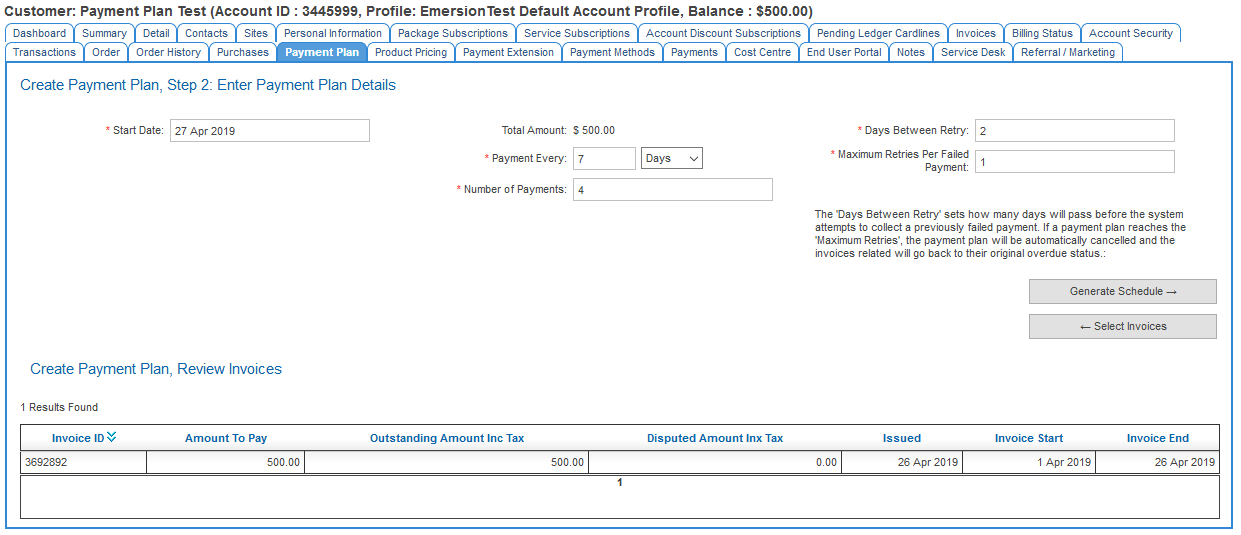
Complete the fields as follows:
| Field | Description |
|---|---|
| Start Date | This field defines when the payment plan will start, and also sets when the system will attempt to take its first payment |
| Total Amount | This represents the total amount of all invoices covered by the payment plan. |
| Payment Every | This field dictates how frequently payments will be attempted for this payment plan. It's recommended that this not be too short, as payments - in particular Direct Debit payments - could take as much as 3 business days to clear. |
| Number of Payments | The number of payments that the system will make as part of the payment plan. A high number of payments will result in more payments of a smaller amount and vice versa. |
| Days Between Retry | This field defines how many days the system will wait after a previously failed payment before re attempting the payment |
| Maximum Retries Per Failed Payment | This field defines how many attempts the payment plans system will make before cancelling the payment plan. Note that when the payment plan is cancelled due to the retry limit being reached, the payment method on the account will also be disabled. |
When you are ready, click Generate Schedule.
Configure Schedule
This page gives users the ability to adjust the amounts and on what days they will occur. The amount can be changed to any value, but if the sum of all the amounts does not match the Total Value of the payment plan, users will be unable to save the changes.
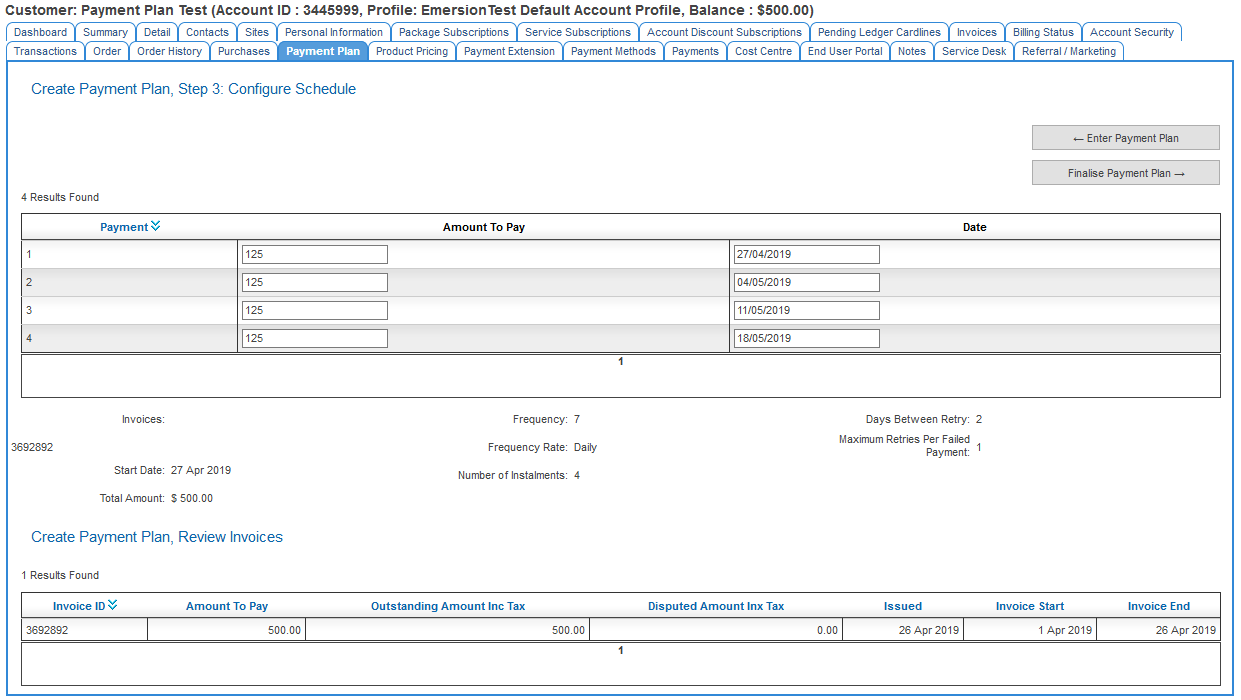
Below the schedule of payments and amounts is the settings you entered in step 2. Review these for accuracy. If you need to edit any of these details, press the Enter Payment Plan button to go back to step 2.
Below these settings is the list of invoices covered by the payment plan.
Once you are happy with the schedule and all settings, press Finalise Payment Plan to create the payment plan.