Overview
This article describe how to enter an IPND service contact into Cumulus so the data is updated on the IPND database. This forms part of the IPND module in Emersion.
This article focuses on the steps to enter an IPND service contact into Cumulus:
- during an order
- against a service subscription.
An IPND service is always the end user of an individual service. Do not use your organisations contact details. You are the "carriage service provider", not the end user.
In some circumstances you may elect to use a shared contact/representative from an organisation where an individual person is unknown or where multiple people may use an individual service (as is the case for many businesses that employ receptionists on shift work, etc).
The most important piece of information is a correct physical address.
Looking to Bulk Upload Contacts?
For users who need to enter a large number of contacts against existing service subscriptions, Emersion recommends using our Contact Import tool instead. This tool provides the ability for users to create various types of contacts in bulk against supported objects, like accounts and services.
Enter an IPND Contact During an Order
To do this;
Start the order in the usual way.
Progress the order until the Service Configuration section (shown below) is presented. The user will see some on-screen indicators related to the IPND contact and the Order Completion requirements. They are marked in Red.
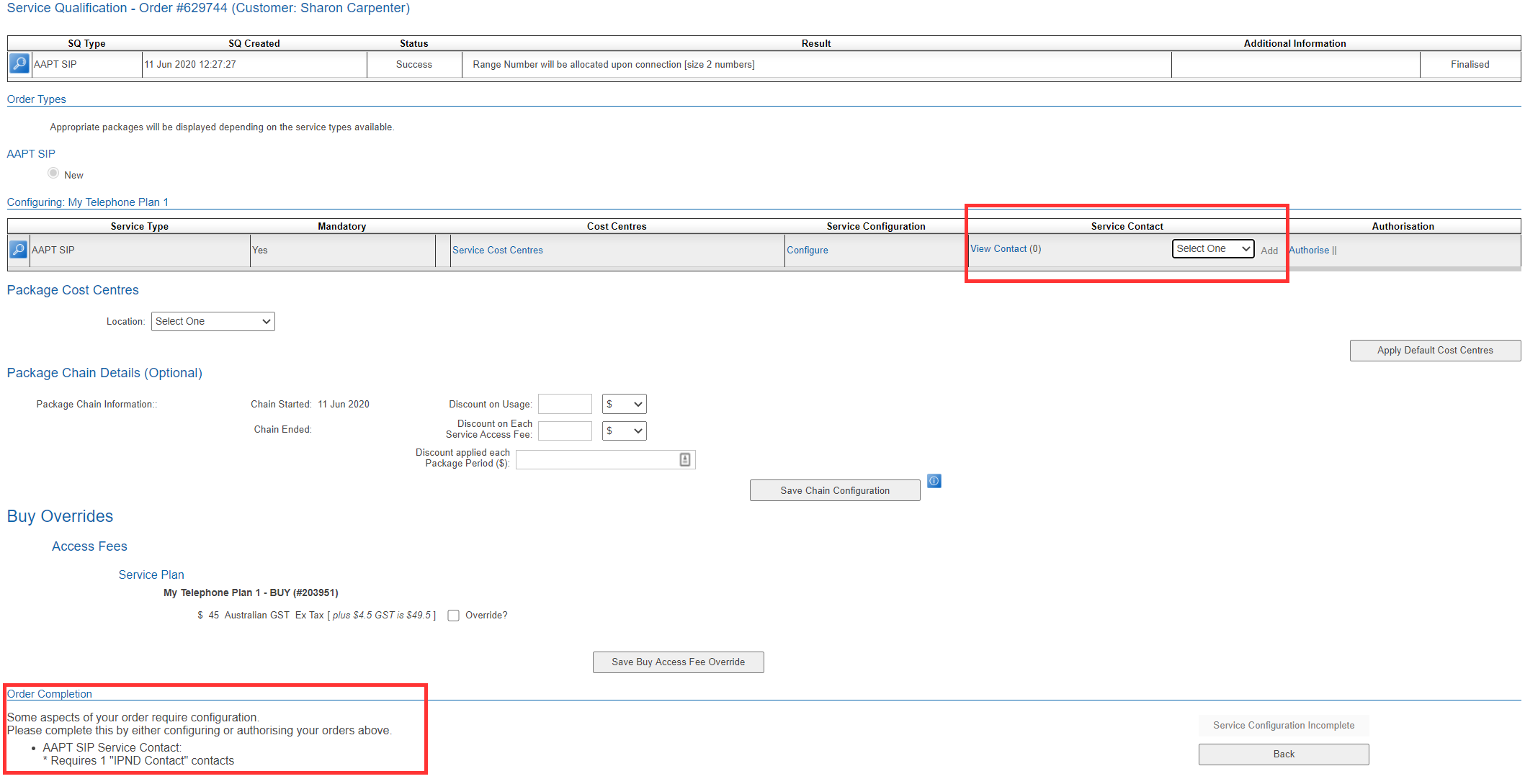
The configuration for each service in the package will be displayed via a line entry in the centre of the page, below the SQ line(s).
To enter a service contact for the service, go to the Service Contact column and use the drop down the menu.
Select IPND Contact
Press the Add button to the right of the drop down. The user will be presented with the contact screen.
Enter the contact's information into the form.
When finished, press Save.
The user will be taken back to the Service Configuration section of the order. The user knows the contact is saved when a 1 appears in brackets. This number tells users how many service contacts are stored within the order.
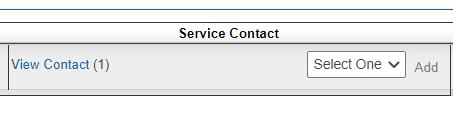
Continue with progressing the order.
On the final confirmation page of the order, the service contact will be displayed to the user.
When ready, press Submit.
Enter or Update an IPND Contact against a Service Subscription
IPND contacts can be entered and updated at any time via the service subscription record.
If an IPND contact is not present against an end user's existing service, Emersion will use the name & address data from the end user account's Primary Contact to send to the IPND but will only do so once a change has been detected and saved on the Primary Contact. We will not automatically send an account-level contact to the IPND without a change being detected.
If you want an existing or imported service to send data to the IPND the recommendation is to either;
Users can find the service subscription via the customer record under Customer > Service Subscription or by using the Services > List All page to find the service, then clicking the Service ID or Service Identifier to open it.
Go the Service Subscription > Service Contact sub tab.
Any service contacts, including IPND contacts that are already listed, will show in a list.
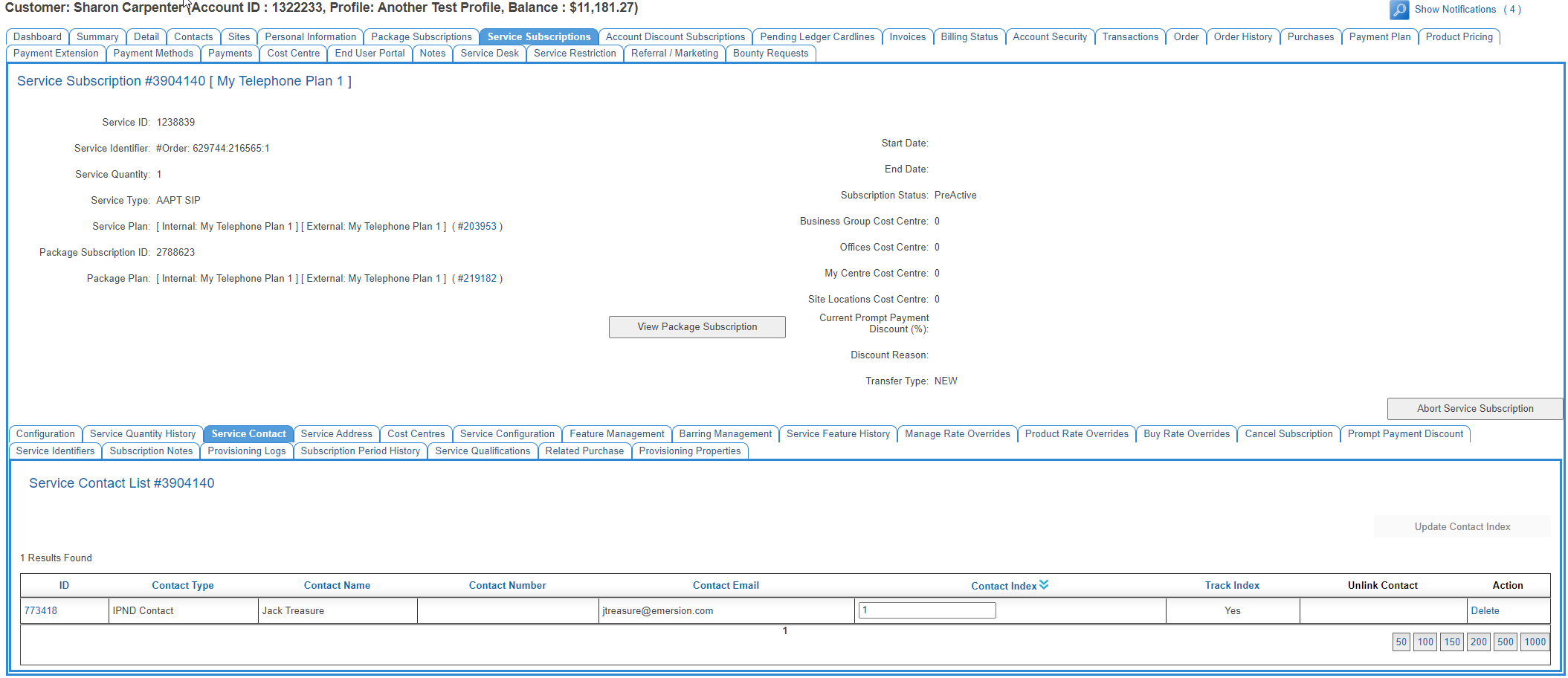
From this screen, users can:
- Enter a new service contact
- Edit an existing contact
- Delete a contact
If the screen does not show the Add Contact button, it means that the maximum number of contacts has been reached. If the user needs to change the contact to another but can't create one, delete an existing contact then enter a new one.
The Contact Index
The contact index places gives users the ability to sort the service contacts into a specific order. If multiple contacts are entered, users can change the number ordering and press Update Contact Index.