Overview
This article is specifically for subscribers of the Service Desk Module who are using the Inbound Mail extension and whom intend to set up the physical mailboxes using GMail from Google, so their end users can create tickets by sending emails to xxx@gmail.com.
Gmail and Gmail for Business subscribers need to be aware of an additional layer of security in Google's Gmail architecture. This security layer is designed to prevent authentication attempts from an client (mobile device, computer, tablet, etc) who has not already been authenticated and "Is known" by the mailbox account (and therefore safe). This includes any authentication requests by Emersion for the purposes of retrieving emails in order to create tickets.
Subscribers to Gmail will need to explicit permit Emersion to access the mailbox so we can retrieve email. This is a one-time set-up. Once Emersion is permitted access to the mailbox, users will not need to complete these steps again, unless access is revoked.
Read and complete the steps in the article below if you run into issues when initially setting up your mailboxes in Emersion.
Mailbox Configuration
Gmail / Google specific security notification
Google tend to immediately block any unknown login attempts by default.
Google will send an email to both the email account itself, as well as the "recovery" email address. The email will inform the reader that somebody (a.k.a Emersion) has attempted a login with your current password.
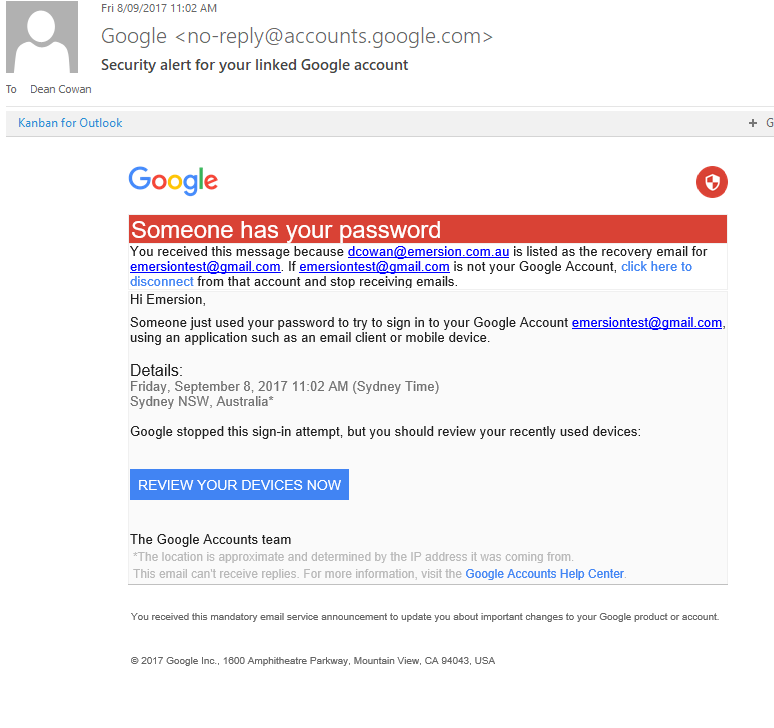
Click the link in the email to review your devices on the Recently Used devices page. Allow access to Emersion.
You can also avoid the situation occurring by manually going to your Google Notifications administration page.
- https://myaccount.google.com/notifications
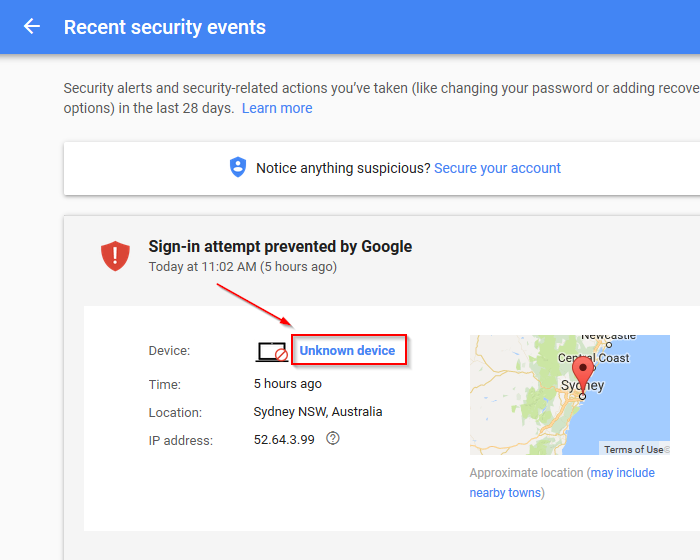
- Click the Sign-in attempt prevented by Google notification link
- Click the unknown device link. It will look something like https://myaccount.google.com/device-activity/nt/1504832549000)
Click YES, THAT WAS ME to authorise the device for login.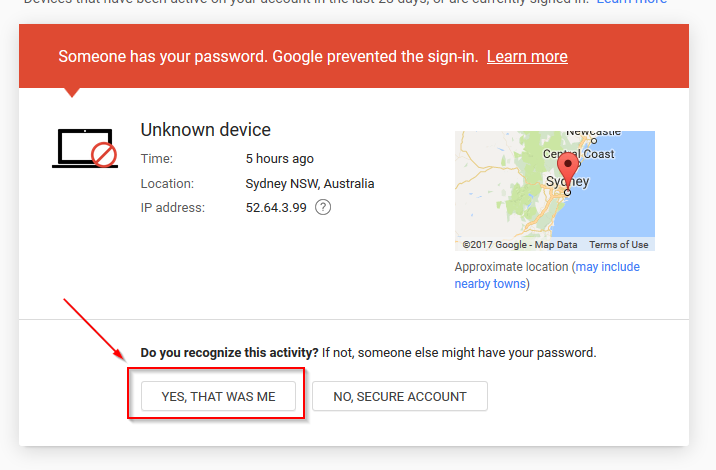
Less Secure App Access Setting
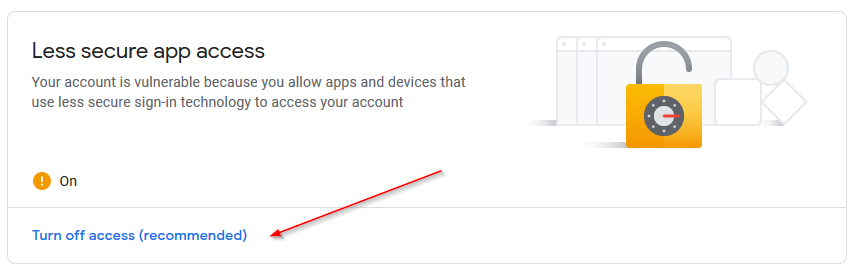
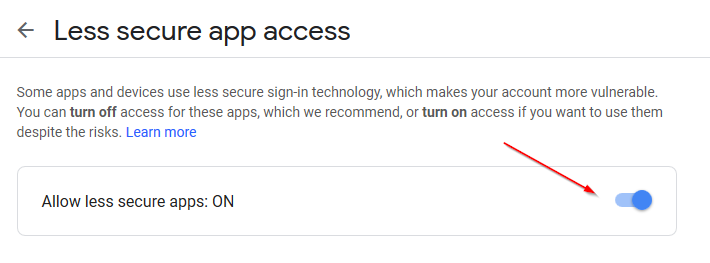
In addition, you may need to review your Google Account's "Less Secure App Access" setting as they now force this to OFF by default (which will prevent future account logins from unknown/less secure apps.
- Navigate to https://myaccount.google.com
- Click on Security
- Scroll down to Less secure app access section and click Turn on access (not recommended) - Alternatively, simply navigate directly to https://myaccount.google.com/lesssecureapps
- Turn on the Allow less secure apps setting
Google's Secret "UnlockCaptcha" Setting
If you have attempted to connect to a GMail mailbox via IMAP4 and all attempts to connect are failing and the following are all true
- you have followed the above instructions to allow less secure app access
- do not have phone sign in turned on
- do not have 2-step verification turned on
- have not blocked access to Emersion's mailbox connection attempts
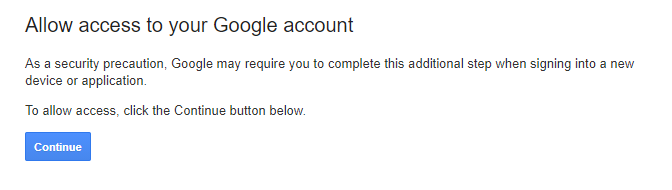
you may attempt to "allow" access by firstly ensuring your browser is logged into account.google.com using the GMail mailbox username/password successfully and then navigating to the following URL directly:
https://www.google.com/accounts/DisplayUnlockCaptcha

Google's mailbox checking frequency
Make sure your mail app isn't set to check for new email too frequently.
If your mail app checks for new messages more than once every 10 minutes, the app’s access to your account could be blocked.
Assuming all other configuration of the mailbox is correct, email can now be retrieved.