Overview
This article explains the differences in user interface and system behaviour that occur when Multiple Pending Invoices is enabled.
This feature represents a significant change to how Emersion's platform operates by default.
By default, a customer can have a single pending invoice only. Additional invoices will not generated by the system until the existing Pending invoice is approved.
This rule is enforced across the entire system.
With this rule removed, you will observe changes in several areas of the user interface to enable the system to cater to a customer's ability to have multiple pending invoices.
System Behaviour
When this feature is enabled the system can be configured to behave differently when interacting with pending invoices and cardlines.
The settings and their behaviours are explained here.
Additional Invoice Status: Awaiting Approval
This status is for Pending invoices that need to be reviewed before approval. Invoices stay in this state until they are approved or are returned to the Pending status.
Invoices in the Awaiting Approval status:
- Are no longer Pending, and so cannot have new cardlines allocated to them.
- Will not have any automated actions taken on them.
- Cannot be modified, other than being Approved, or returned to the Pending state.
- Not added to the ledger until they are Approved.
Invoices in this status can be approved by users with the Approve Invoices power.
System-Created vs. User-Created Invoices
This feature introduces the clear identification of system-created and user-created invoices and cardlines.
The difference between the two is that user-created invoices won't be updated by automated system processes.
A user-created invoice is any invoice created as a result of user-based interaction in Cumulus. For example, creating a new pending invoice from the Cardline Management screen.
Invoices that are not created via a user interaction, are system-created.
You can instruct the system to treat a specific invoice as user-created or system-created using the Invoice Management screen.
Changes in Cumulus
Some screens have additional information or options when Multiple Pending Invoices is enabled.
Invoice Management
A number of new options are available on the manage screen for an invoice:
- If the invoice was user-created, then you can press Change Invoice to Created By System to have the invoice treated as a system-created invoice.
- If the invoice was system-created, then you can press Change Invoice to Created By User to have the invoice treated as a user-created invoice.
- You can press Submit for Approval to set the invoice status to Awaiting Approval.
- If the invoice is Awaiting Approval then you can press Revert to Pending to return this invoice to the Pending status.
Outright Product Purchase
When completing a purchase, under the Complete Purchase section of the screen, a new dropdown is available called Invoicing Method. The following options are available for it:
| Name | Description |
|---|---|
| Create Invoice | Create a new invoice for the purchase cardline. If a pending invoice already exists, this option will trigger the behaviour selected in Multiple Pending Invoices Settings under Product Purchase Behaviour. |
| Allocate against invoice id: xxxxxxxx | Allocate the cardline to the listed Pending invoice. |
| Next Invoice | Create a pending cardline. |
Pending Ledger Cardlines
Located at: Customers > Customer List > Select a customer > Pending Ledger Cardlines
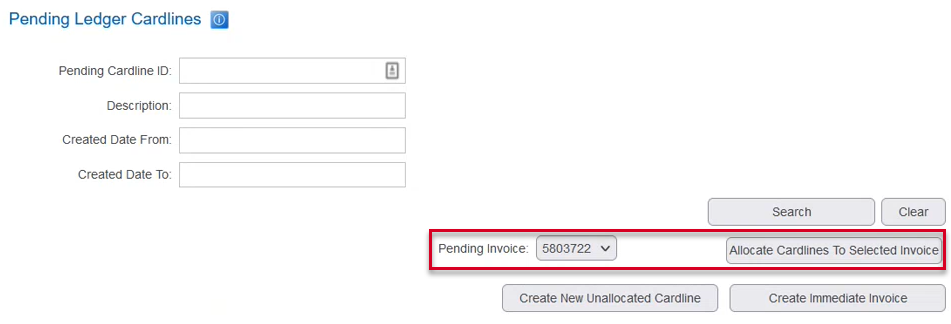
A new dropdown Pending Invoice is available when there are pending invoices available to allocate to, you can use it to select a specific pending invoice to allocate the cardline to.
Press Allocate Cardlines to Selected Invoice to allocate the selected cardlines to the invoice selected in Pending Invoice.
Pending Cardlines List
Located at: Finance > Accounts Receivable > Pending Cardlines
A new dropdown is available to select which kinds of invoices to allocate the selected cardlines to. If no pending invoices of that type exist on the customers account then the cardline will remain Pending.
The Invoice Search dropdown has the following options:
| Option | Description |
|---|---|
| Oldest Invoice of Any Type | The cardlines will be allocated to the pending invoice with the earliest issue date. |
| Oldest User Generated Invoice | The cardlines will be allocated to the user-created pending invoice with the earliest issue date. |
| Oldest System Generated Invoice | The cardlines will be allocated to the system-created pending invoice with the earliest issue date. |
| Oldest Invoice of Cardline Type | Each cardline will be allocated depending on whether the cardline is user-created or system-created. User-created cardlines will be allocated to the user-created pending invoice with the earliest issue date. System-created cardlines will be allocated to the system-created pending invoice with the earliest issue date. |
Invoice List
Located at: Finance > Accounts Receivable > Invoice List
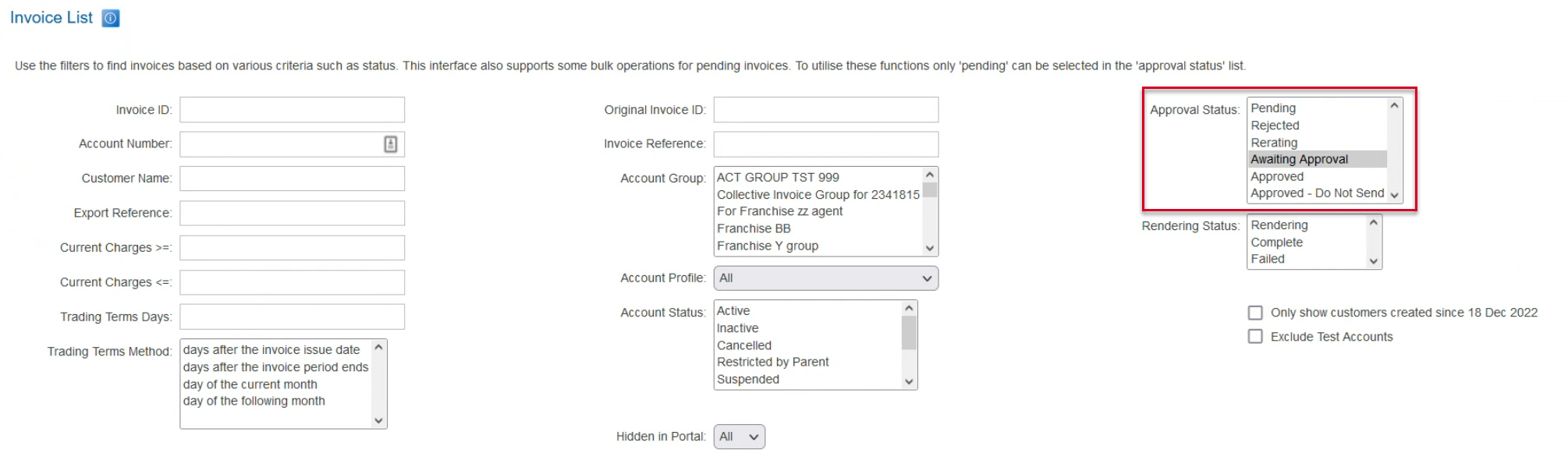
The invoice list can be filtered by the Awaiting Approval status.
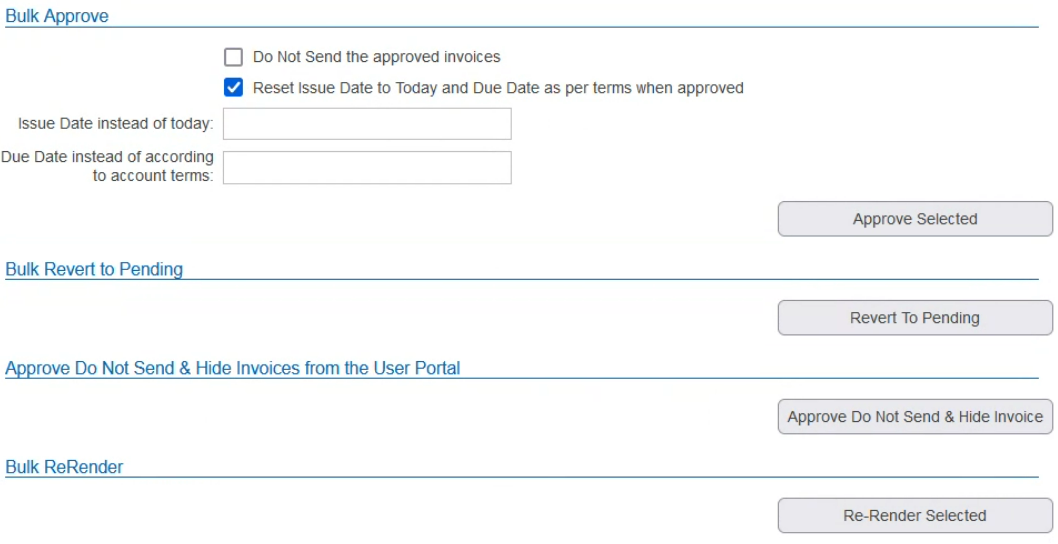
The bulk tools below the invoice table have the following additions and changes:
| Section | Description |
|---|---|
| Bulk Approve | Requires the Approve Invoices power. |
| Approve Do Not Send & Hide Invoices from the User Portal | |
| New Sections | Description |
| Bulk Submit for Approval | Can be used to submit Pending invoices for approval. |
| Bulk Revert to Pending | Only available when filtering the invoice list by Rejected and Awaiting Approval statuses. Can be used to revert Rejected and Awaiting Approval invoices to Pending. |