Overview
This tab displays cardlines that have been generated by the system that are NOT allocated to an invoice yet.
If your account has Multiple Pending Invoices enabled, then your system behaviour may be different in regards to pending invoices and cardlines. Please see this article for more information.
Unallocated Ledger Cardlines
As discussed in cardline management, you can add a cardline to an existing pending invoice. However, you can also manually create an unallocated cardline, or pending cardline, against an account when there is no existing pending invoice, or for other charges and credits you do not wish to allocate to an existing pending invoice. Unallocated, pending ledger cardlines can be created at any time during the billing period independent of the regular billing cycle.
The pending cardline amount will not be reflected in the account’s balance until it is allocated to an invoice, and the invoice is approved. The manually created cardline will appear in the Miscellaneous Charges section of the invoice. If the cardline is a credit (i.e. a negative cardline amount) the amount will appear in the Adjustments section of the invoice, and the amount will be deducted from the invoice total.
Cardlines entered for a negative amount will appear as a credit against the account.
Once an unallocated, pending ledger cardline has been created against an account, you can perform a number of actions:
- Add the pending cardline to an existing pending invoice, via the Manage Invoice function
- If there is no current pending invoice for the account, you can create an immediate invoice that will automatically allocate the pending cardline created, as well as any other pending cardlines stored against the account, to the new invoice created. If your account has Multiple Pending Invoices enabled, then your system behaviour may be different. Please see this article for more information.
- Leave the pending cardline to be processed with all other charges and cardlines during the next bill run. It will then be automatically picked up by the billing process, and appear on the account’s next invoice.
To Create an Unallocated Pending Ledger Cardline
- Select Customers > Customer List > from the Menu. The Customer List page will appear.
- Select the required customer account. The Account Summary tab page will display.
- Click the Pending Ledger Cardlines tab. The Pending Ledger Cardlines page will appear showing any unallocated pending ledger cardlines held against the account.
- Click the Create New Unallocated Cardline button near the top of the list. The New Unallocated Cardline page will appear.
- Enter the date for the cardline in the Transaction Date field. A calendar tool will appear to allow you to select the required date. This date will appear on the Invoice as the date the cardline charge was incurred.
- Enter the amount including tax in the Total (inc. Tax) field. The system will automatically calculate the Actual Value (ex Tax) and the Tax Amount and display in the corresponding fields. Alternately, enter the cardline amount in the Actual Value (ex. Tax) field. The system will automatically calculate the Total (inc Tax) and the Tax Amount.
- Select the Tax Type applicable to the cardline in the drop list. By default, this is set to ‘Australian GST’.
- If you need to enter a manual tax amount, tick the Manually enter tax check box. The Tax Amount field will re-display enabled for editing. Enter the tax amount required.
- Enter the description to show on the invoice for the cardline in the Description field.
- Select the Ledger Code in the drop list. The cardline will be recorded against the selected ledger in the system for accounting purposes.
- Enter the Vanity Cover From, Vanity Cover To dates as desired. The underlying start and end dates won't change, these fields are simply for presentation purposes on the invoice.
- Click the Save button. A message will display at the top of the screen informing that the cardline was saved successfully.
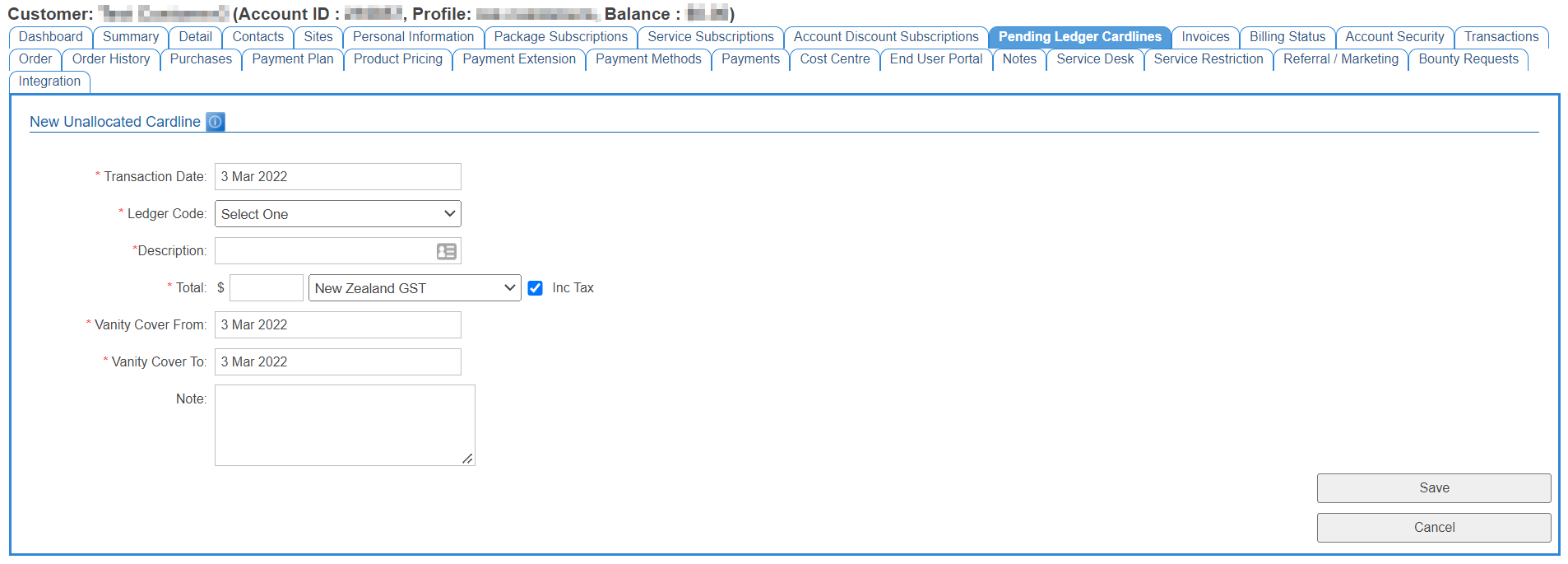
If you do not wish to create a new cardline, please click the Cancel button.
Delete a Pending Cardline
- Navigate to Customer > Pending Ledger Cardlines
- Use either the list pagination links at the bottom or filter on either Pending Cardline ID, Description, Created Date From or Created Date To to target the cardline you wish to delete
- Click Delete in the Action column on the right
- A pop-up box will allow you to NOT proceed in case you make a mistake. If you click Yes, the cardline will be delete forever. You cannot undo this action.
Only non-usage cardlines can be deleted. The system will check the cardline's ledger code name and if it contains "USAGE' you will not be able to delete it
In addition, any cardline created as the result of taking an account security / bond will be prevented from being deleted.
Edit A Pending Cardline
Some cardlines are able to be edited. You will see a magnifying glass icon in the Edit column on the left if this is the case.
- Navigate to Customer > Pending Ledger Cardlines
- Use either the list pagination links at the bottom or filter on either Pending Cardline ID, Description, Created Date From or Created Date To to target the cardline you wish to edit
- Click the magnifying glass icon in the Edit column on the left.
- You may edit the following fields: Transaction Date, Description, Actual Value (ex GST), Tax Amount, Covers From, Covers To, Vanity Covers From, Vanity Covers To and Note. Keep in mind that only some cardlines can have their ledger code modified from this page.
- Change whichever fields you are able to and the click Save. Click Cancel to undo any field changes prior to saving.
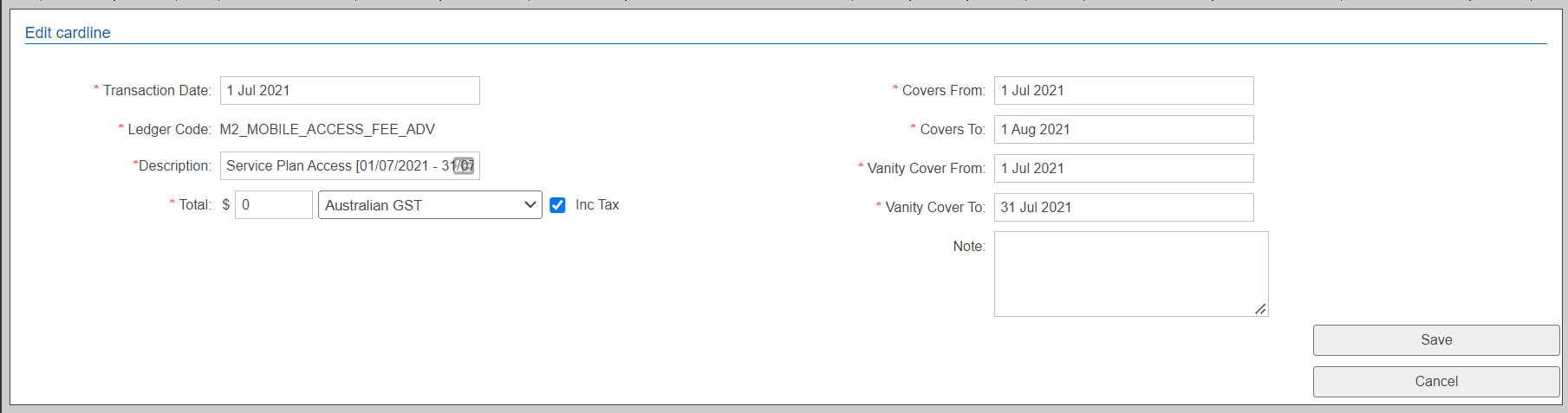
For customers with the Cost Centre module, you will see an additional section called Edit Cost Centres
- Following the instructions above to edit the appropriate cardline
- Choose the cost centre value to apply to the cardline
- Click the Update Cost Centres button.
Editing a cardline will not automatically allocate it to an invoice. You can do this from Invoice Manage page of a pending invoice.
Bulk Import & Manage Pending Cardlines
A bulk import tool is also available to import ledger cardlines in bulk against 1 or more accounts. See Cardline Import.
In addition, a bulk update tool exists to enable you to manage pending cardlines. See Cardline Management.