Overview
This article relates to the Xero Integration and aims to explain what users will see when data is pushed from Emersion to Xero in all cases.
To jump to the translation you are interested in, use the links on the right.
To see the expected behaviour from transactions that are pulled from Xero into Emersion, click here.
Invoices (Positive Balance)
When a positive balance invoice is raised in Emersion, upon approval this will be sent to Xero.
For invoices that contain 1 or more ledger cardlines totalling $0 we will push the invoice to Xero. It will be marked status Paid immediately as there will be no outstanding balance
For invoices that contain no ledger cardlines, we will not push the invoice to Xero
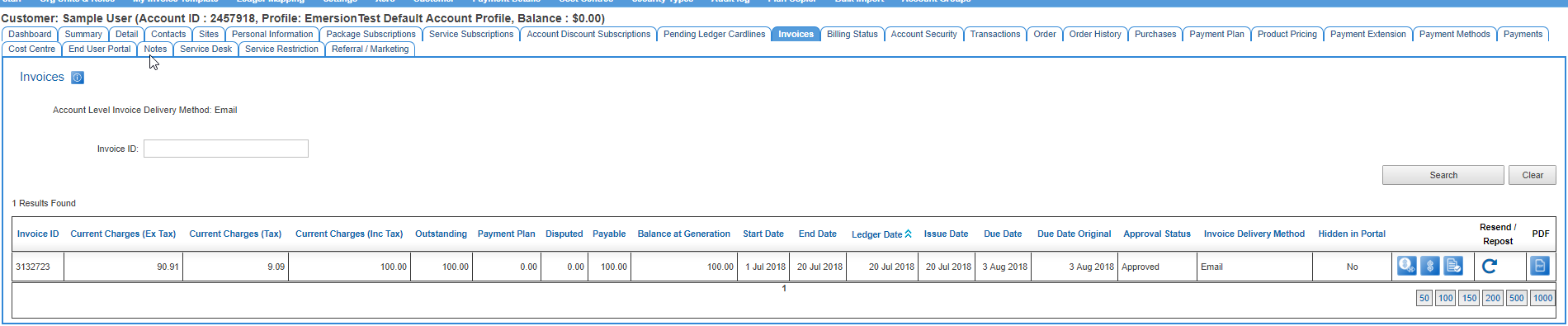
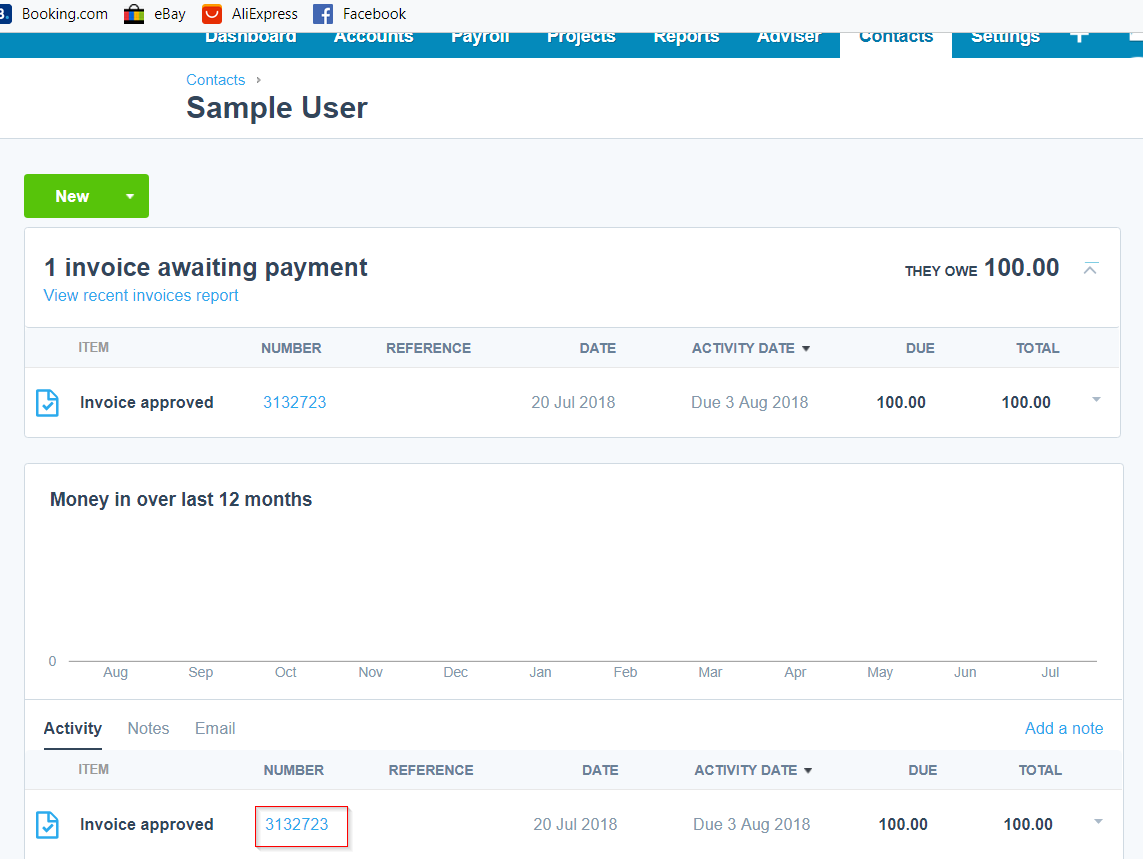
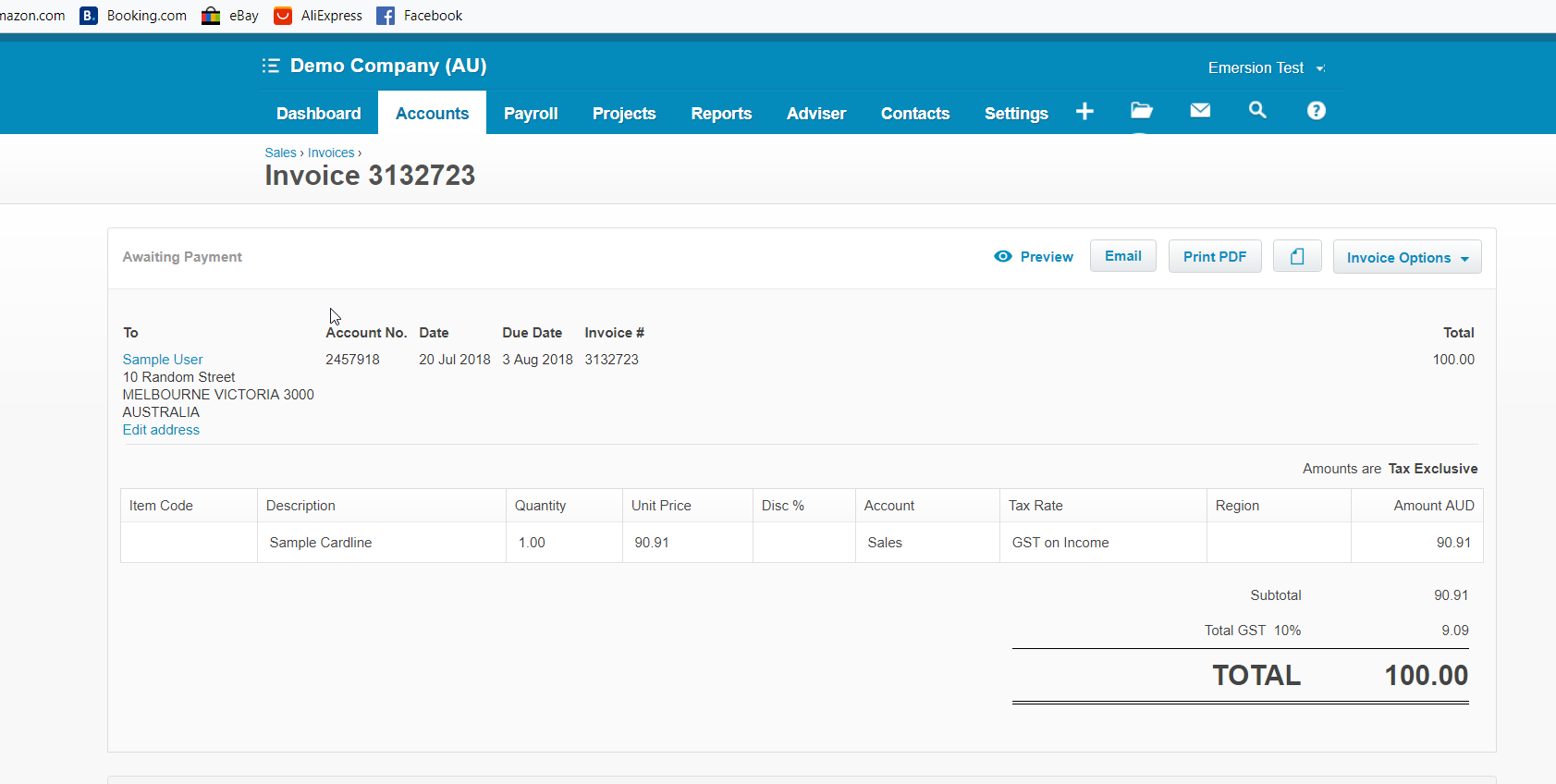
The invoice number in Emersion will match the same invoice number in Xero.
Warning
Do not try to adjust line items or invoice amounts, or delete the invoice. These are not changes that will be reflected in Emersion.
Approved Invoices
Once the invoice is approved in Emersion and sent to Xero, if the invoice is wrong you would need to send a request to reverse the approval in Emersion and then delete the corresponding invoice in Xero. Ask for emersion support advice before attempting any manual actions.
The only exception to this rule is modifying the description of the line item, or the ledger code it maps to.
Users must keep in mind if the description of the line item in Xero does not match that of the cardline in Emersion, they will have trouble backtracking which item relates to which cardline.
Invoices with a Credit Balance
When an invoice with a credit balance is raised in Emersion, it is pushed to Xero as a credit note:

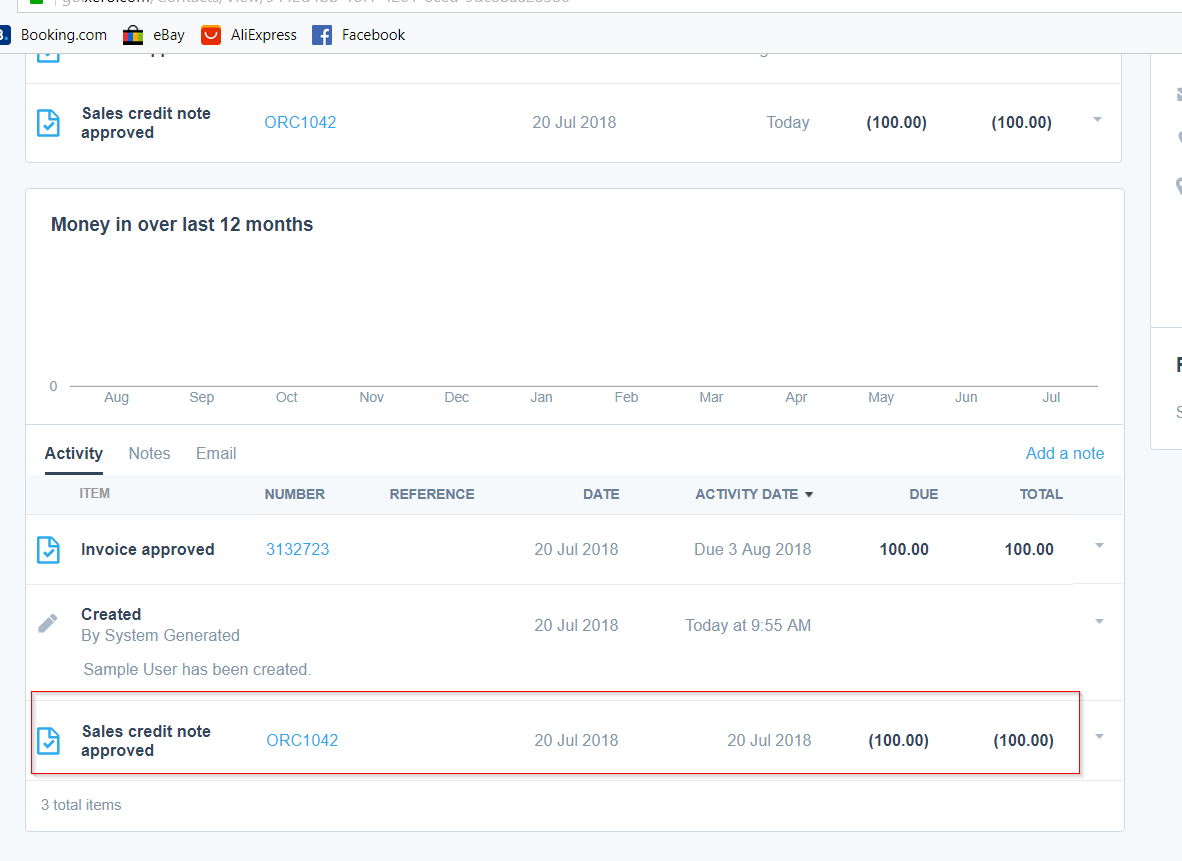
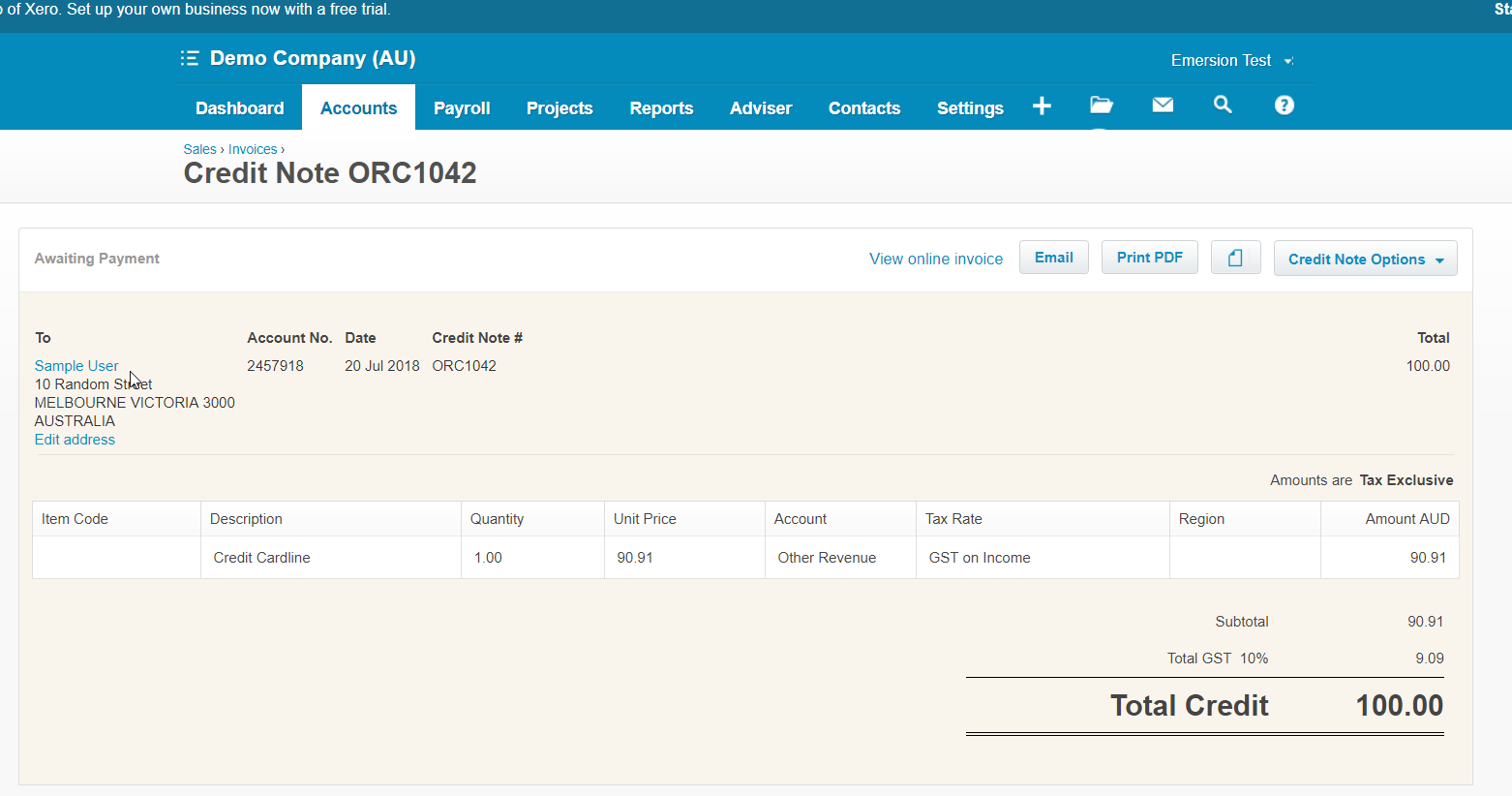
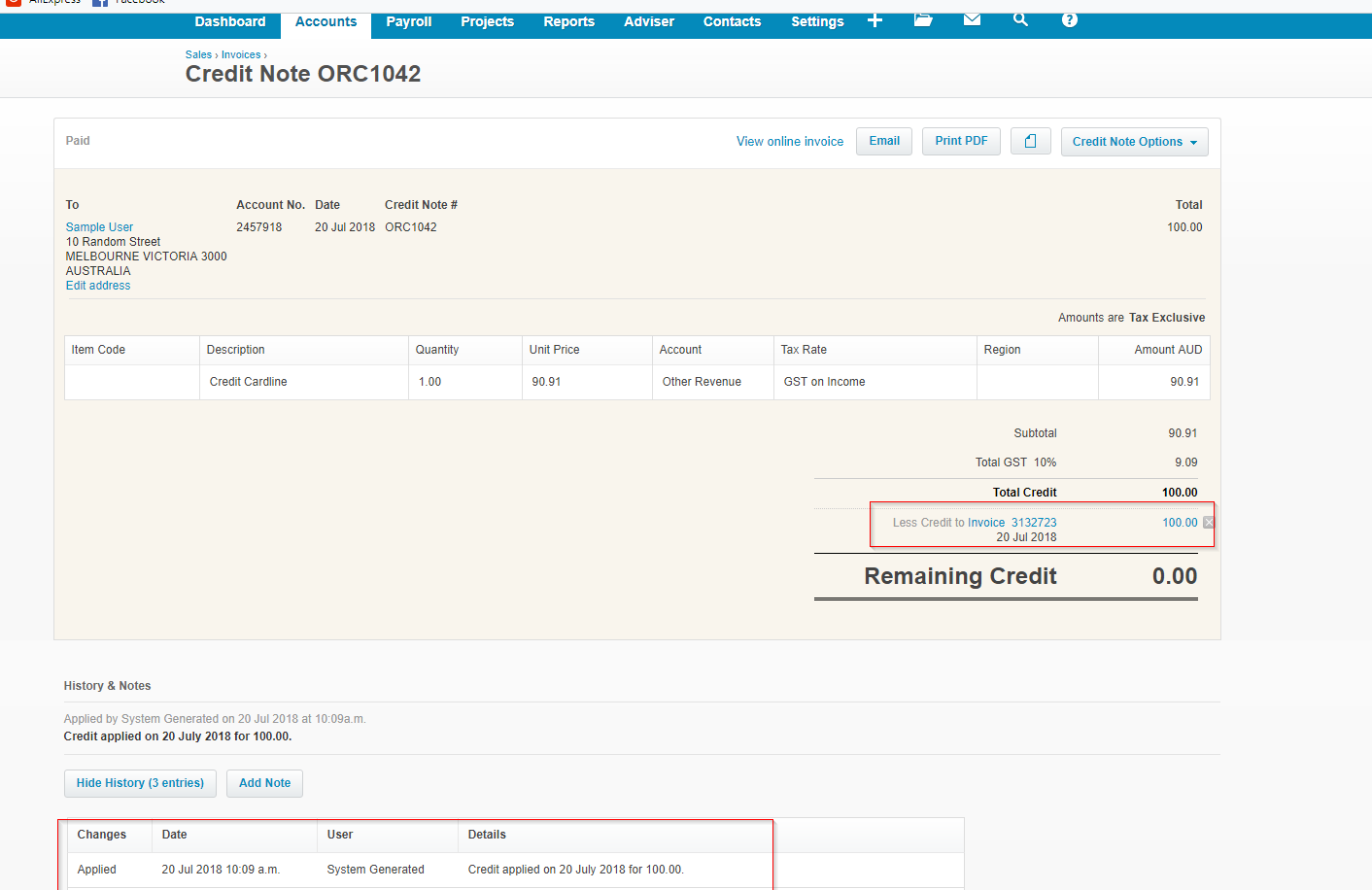
If the credit is not yet allocated to an invoice in Emersion, it will also remain unallocated in Xero. As the credit amount is allocated in Emersion, it will also in turn allocate in Xero. In this example, we can see the credit amount has been subsequently allocated.
Credit Invoices in Emersion
An invoice with a credit balance in Emersion is converted into a Payment of type "Internal Charge". This payment is then subsequently allocated to outstanding invoices.
Warning
Do not attempt to manually allocate credits of this nature to any invoice, whether the invoice is from Emersion or otherwise. Credit notes originating Emersion should be allocated by the integration, not by a person logging into Xero and manually allocating. If you think there is a problem with a credit not allocating as it should, raise a support ticket with Emersion.
Do not attempt to void, reverse or otherwise modify credit notes. Actions of this nature will not be reflected back in Emersion and cause a mismatch between the two systems.
Payments
As a payment is raised in Emersion this will additionally flow through to Xero as an OverPayment.
OverPayments vs Prepayments: In many cases when the initial payment is pushed, it is not yet allocated to an invoice. A prepayment is not reflected in the overall account balance in Xero. Therefore, the integration will push as an overpayment, never a prepayment.
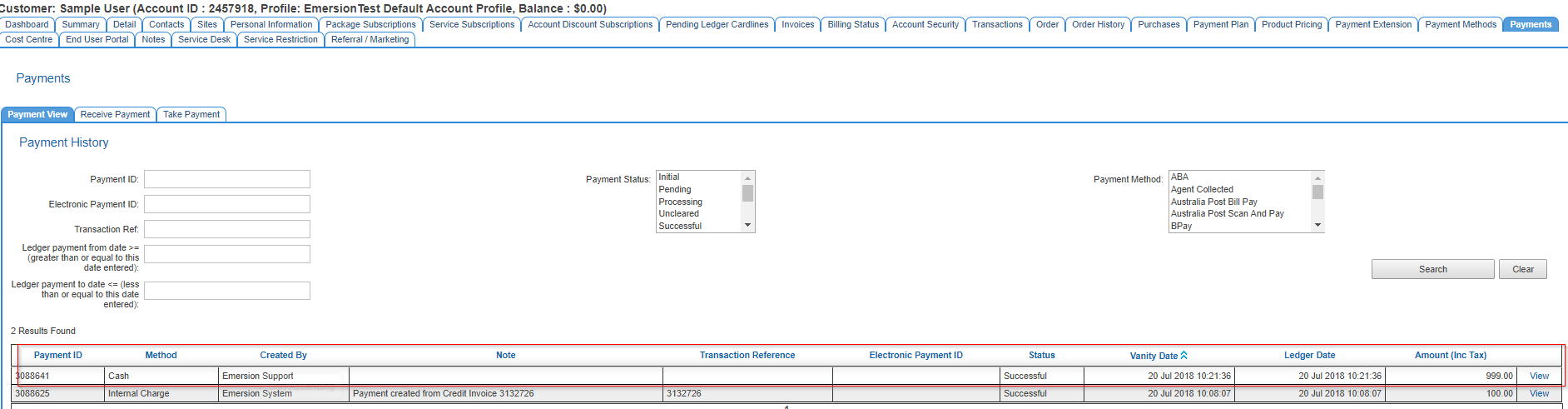
In Xero we can see the over payment here, and the fact that it is represented in the overall account balance in Xero
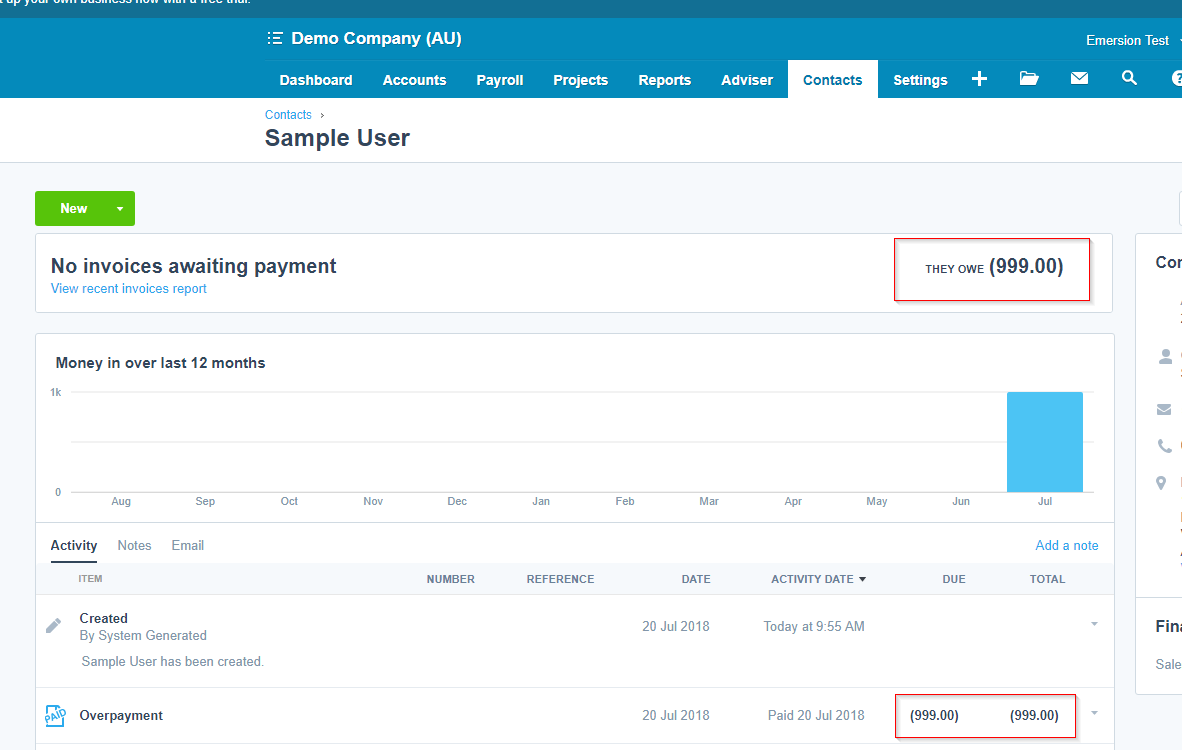
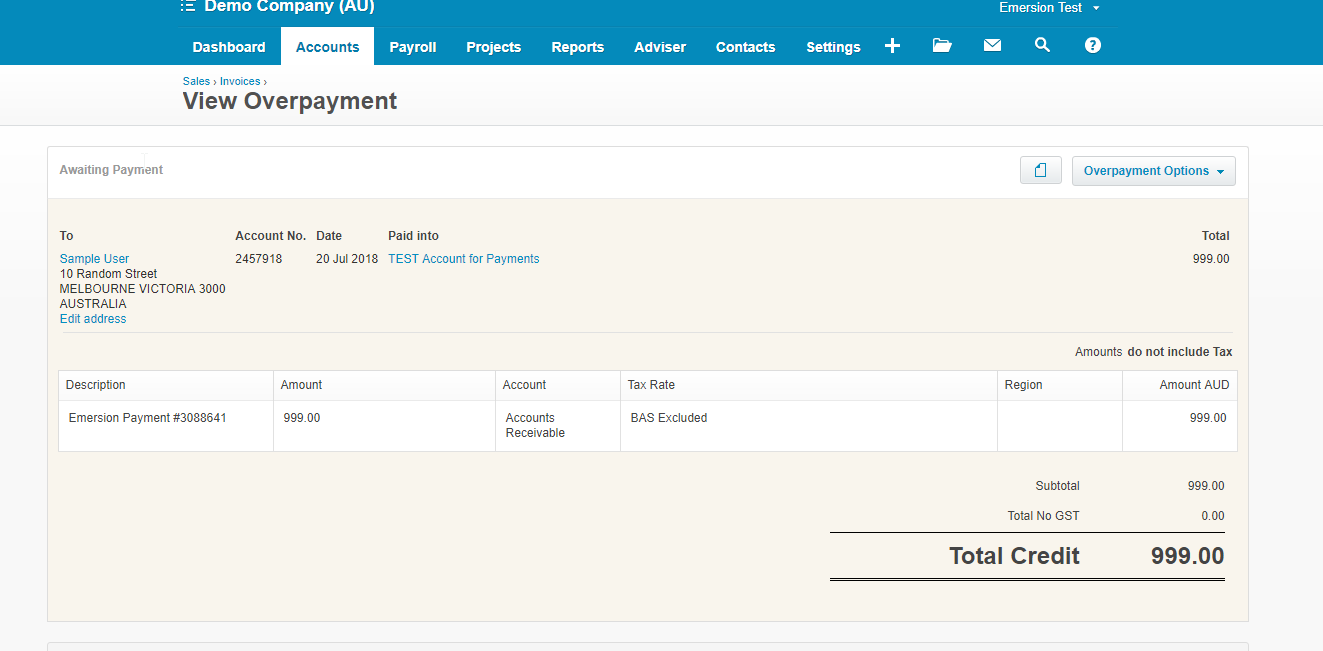
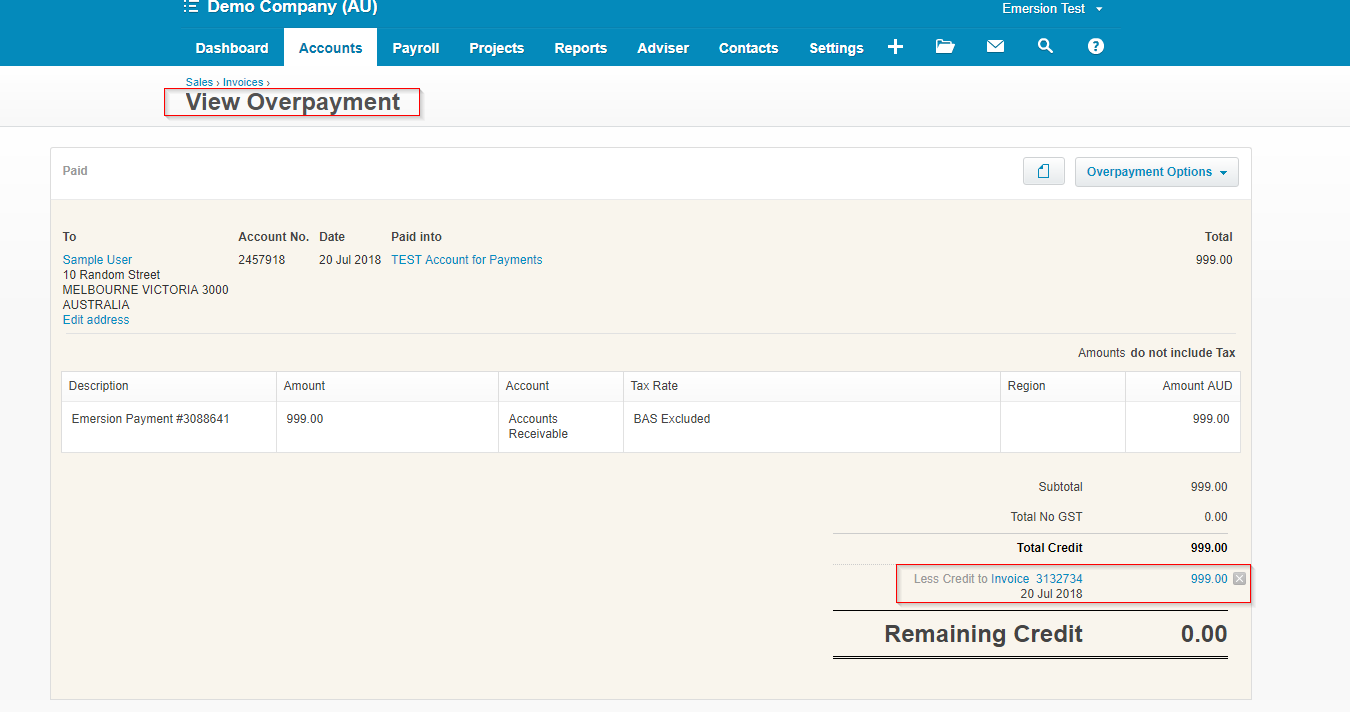
As the payment is allocated in Emersion, it will in turn also allocate in Xero. We can see here how this is reflected in Xero from view Overpayment:
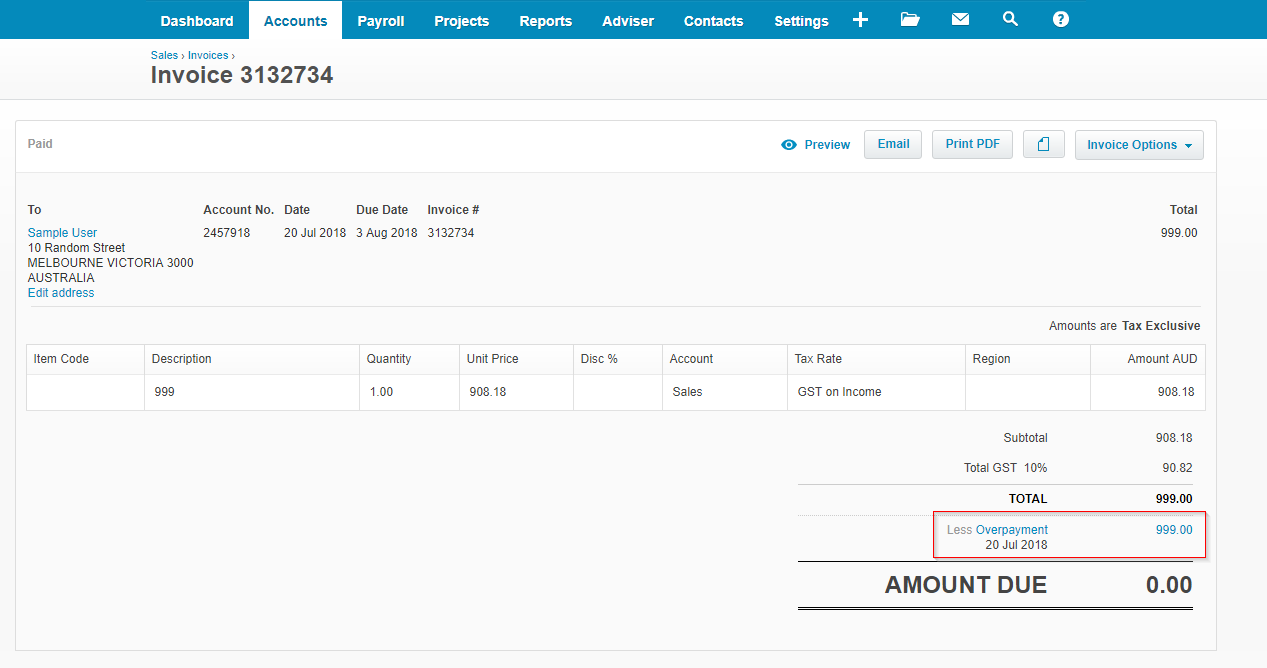
And from the view Invoice screen:
Warning
- Do not attempt to manually allocate Payments originating from Emersion to any object in Xero. This may cause invoice balance problems in Emersion later. If you think there is a problem with an allocation not being performed by our automatic integration, raise a ticket with Emersion Support.
- Do not try to remove, void or in any other way modify Payments originating from Emersion. This is not an action that will be reflected in Emersion. The integration at this time does not support this action.
The Xero Reconciliation Wizard
Many users use the Xero account reconciliation wizard to conveniently reconcile funds received in their bank account with payments that have flowed Emersion.
Where payments are being entered into Emersion, while you are reconciling your bank statement you should use the match functionality.
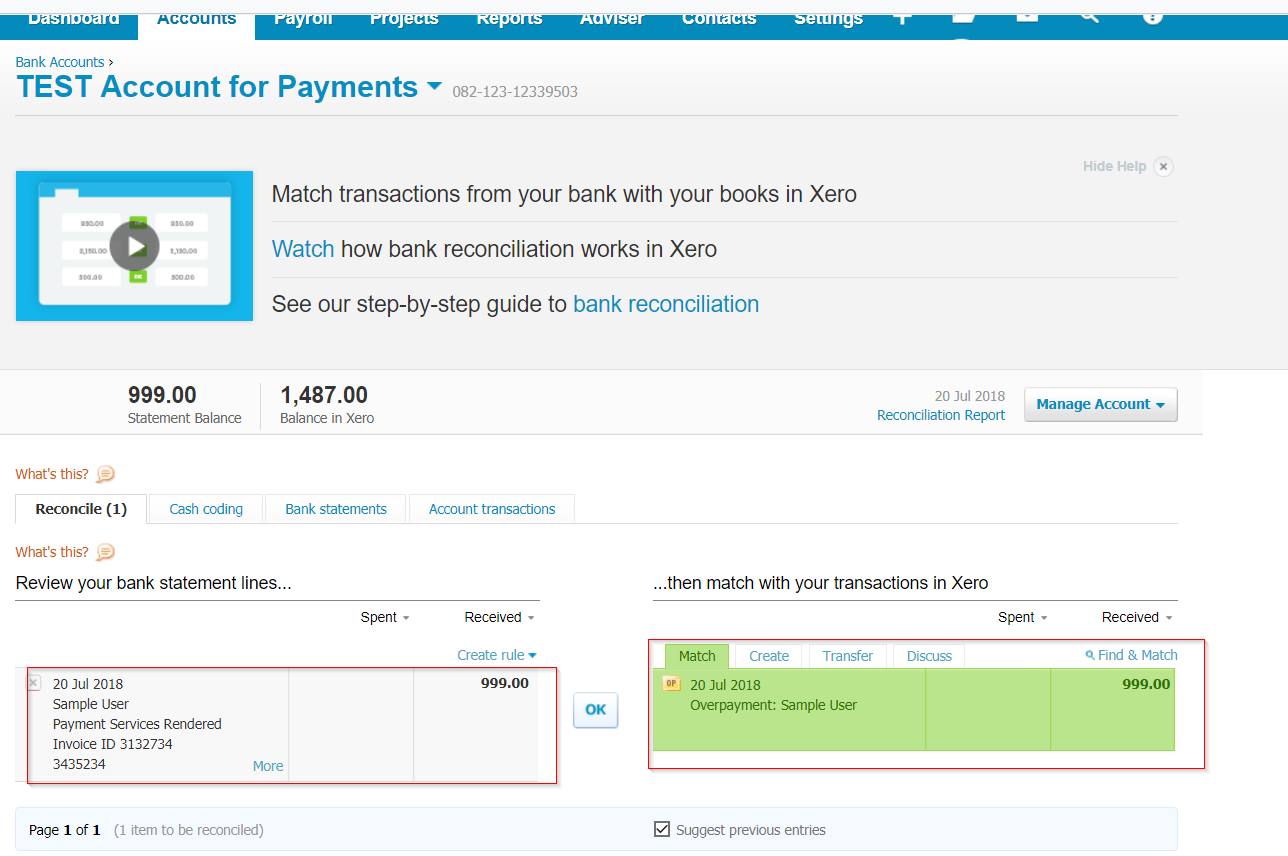
In this example below, we can see the $999.00 amount in the bank account has a matching payment for from Emersion. In the Matching tab we should be able to see the matching payment that originated from Emersion. Click OK to reconcile.
The amount received into the bank account may correspond with multiple payments received in Emersion and it is also possible to match against multiple payments.
Warning
Be mindful of the create tab in this wizard. If you are expecting to see a matching payment from Emersion and it's not there, do not attempt to compensate by creating a new payment. This will cause balance issues in Emersion, and cause the Emersion and Xero balances to not match. If you cannot see a payment here in the matching tab, some potential causes are:
- The payment has yet been entered into Emersion, or the payment in Emersion is not in a success status
- The payment was pushed across, but into a different Bank Account in Xero than the one you expected. Check your bank account configuration in Emersion via Admin → Xero → Configure Bank Accounts.
- The payment was taken successfully in Emersion but not pushed across to Xero to any bank account. If this is the case please contact Emersion Support for further advice.
Payments Originating From Emersion
In some circumstances a client may elect to create a payment in Cumulus, which is pushed to Xero and then subsequently allocated to an invoice not originating from Emersion. This would occur by someone logging into Xero and performing this action manually. This scenario will result in the payment being "refunded" in Emersion.
In this example, a payment for 333.33 was received for this account. There are no invoices on this account presently.
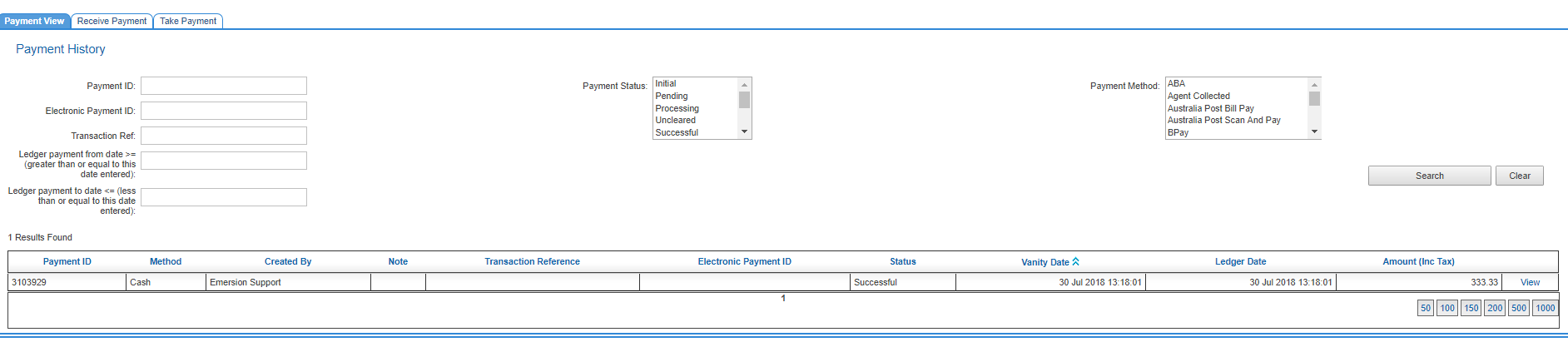
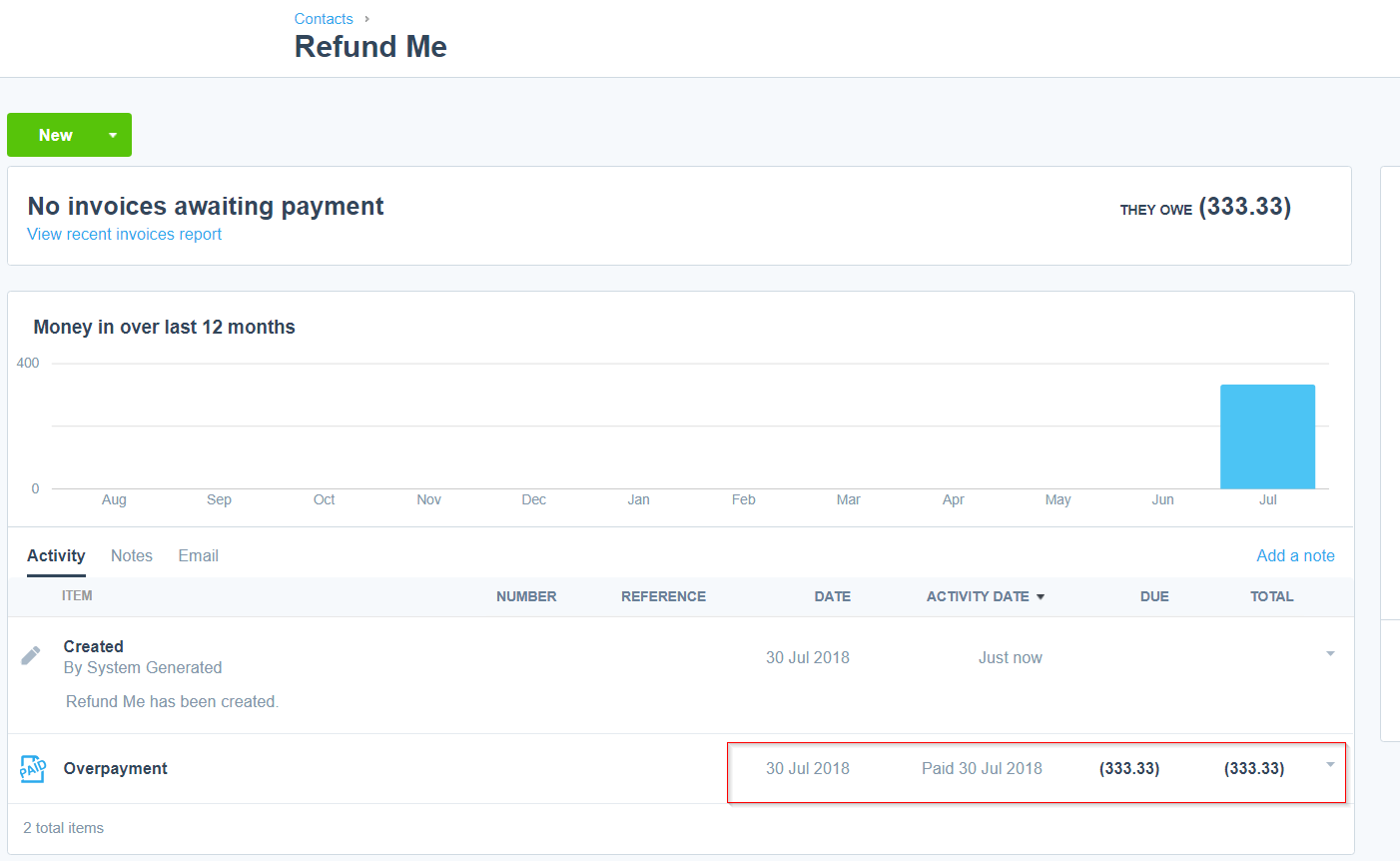
We can see this payment has subsequently flowed through to Xero.
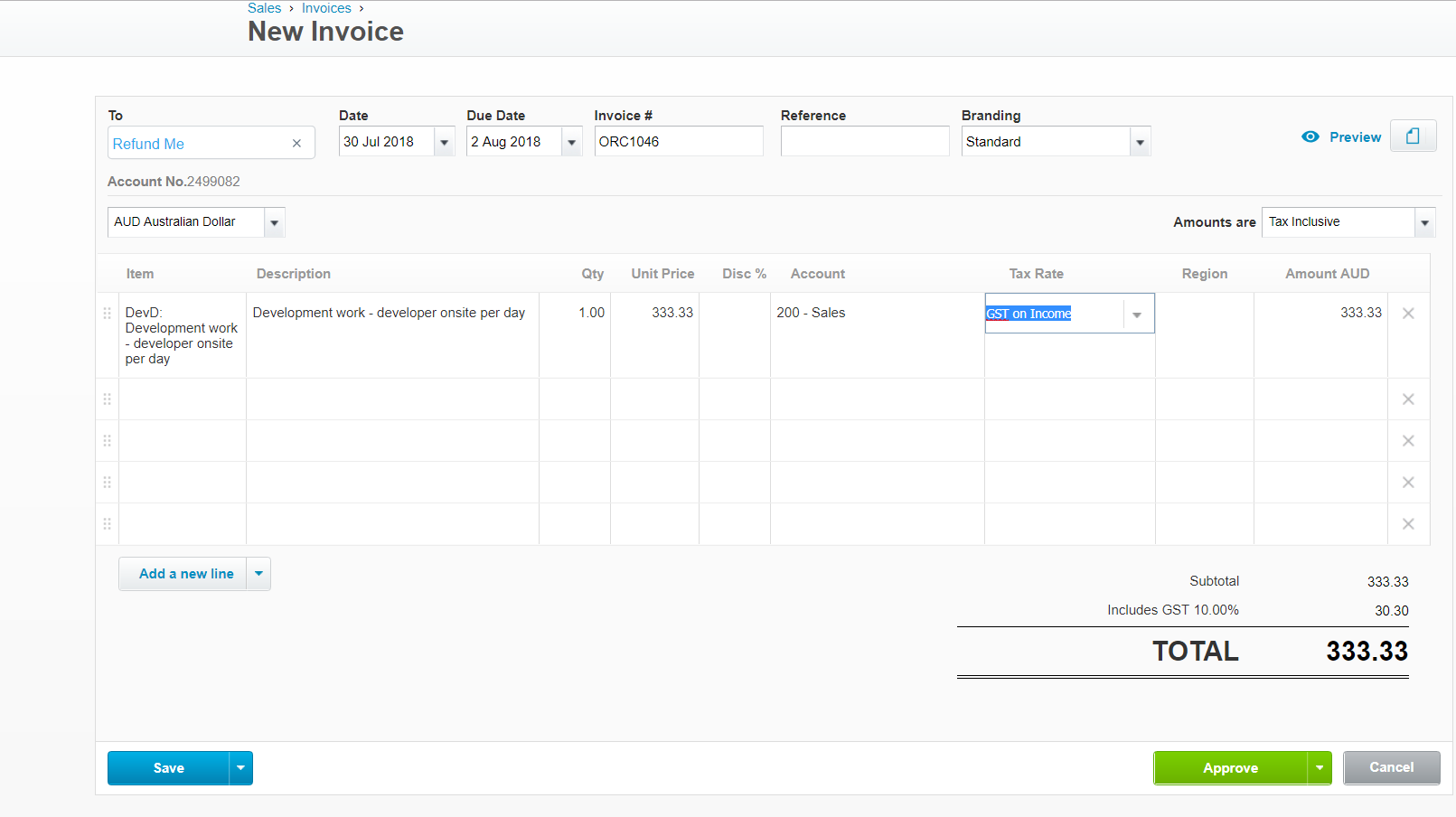
Now, raise an Invoice within Xero.

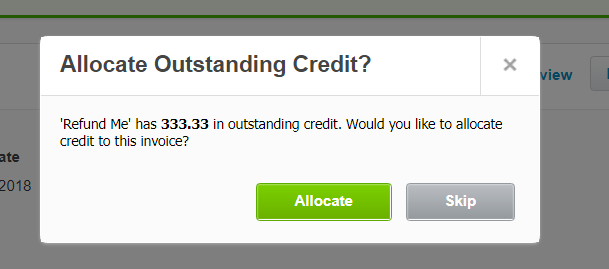
Directly after creating the invoice Xero will prompt to allocate the Overpayment that was previously pushed.
If Skip is selected users can navigate to the Overpayment later and allocate it.
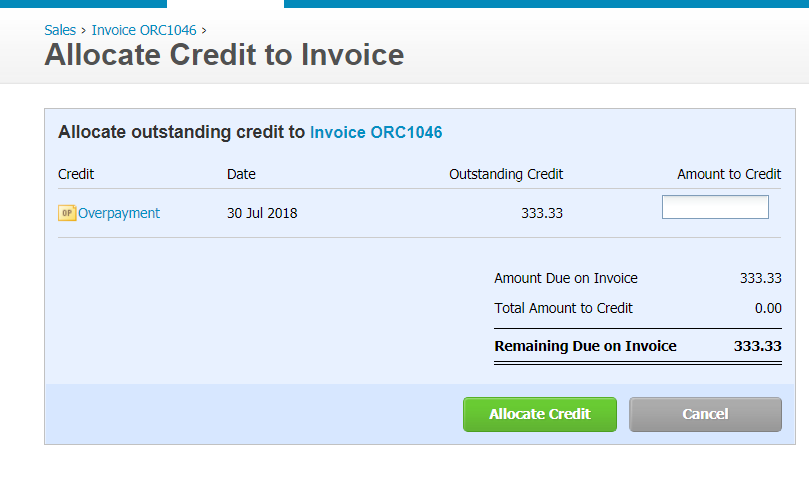
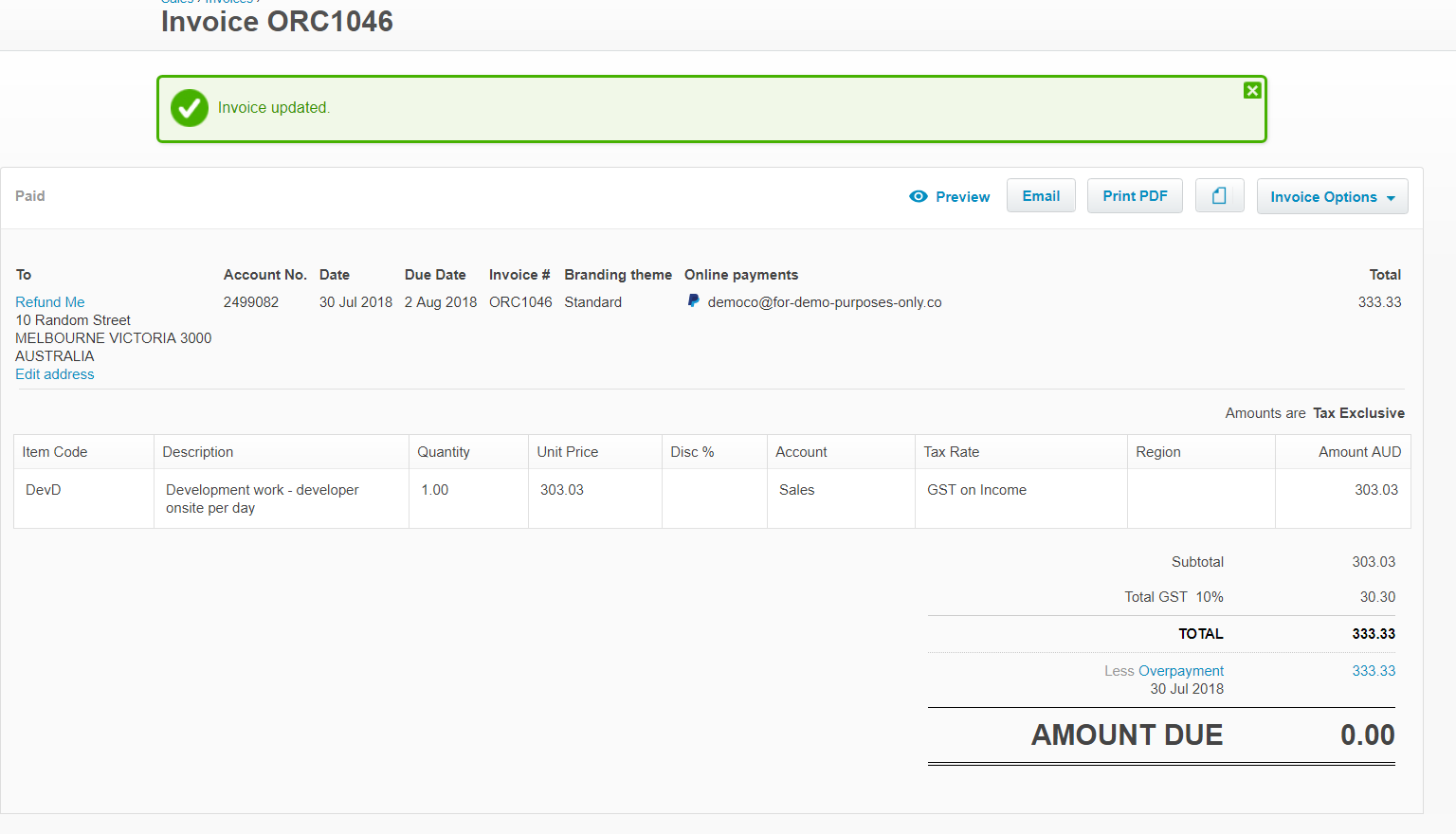
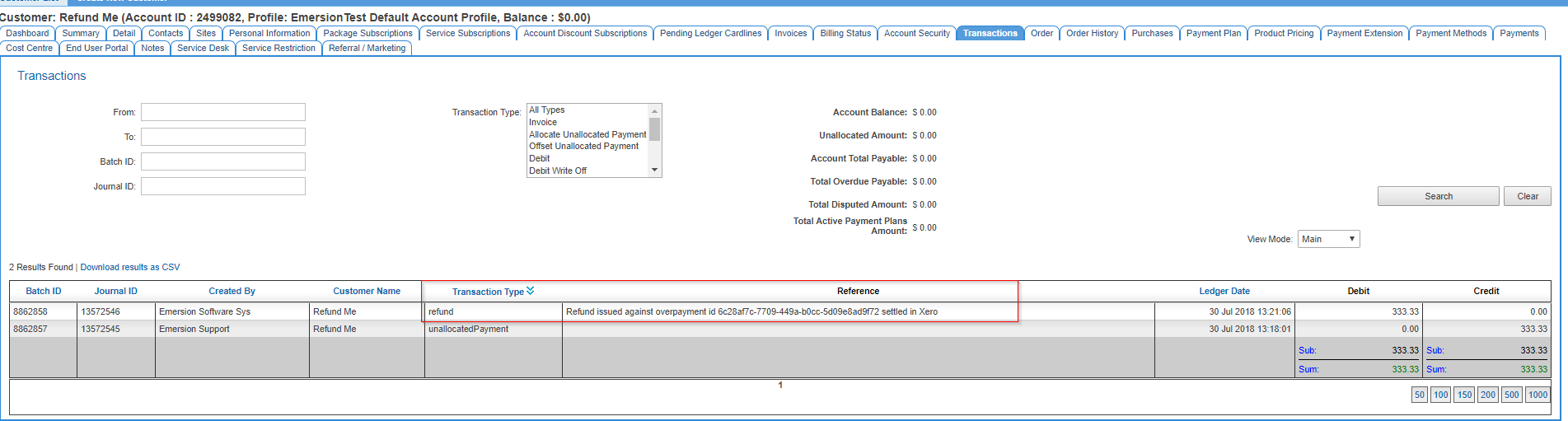
Once a synchronisation between the two systems has been performed, in Emersion users will see a refund has been issued on the general ledger with a reference back to the Xero payment in the description.
Unsupported Transactions
The following transactions in Emersion are not supported in the Xero Integration and will not be reflected in Xero.
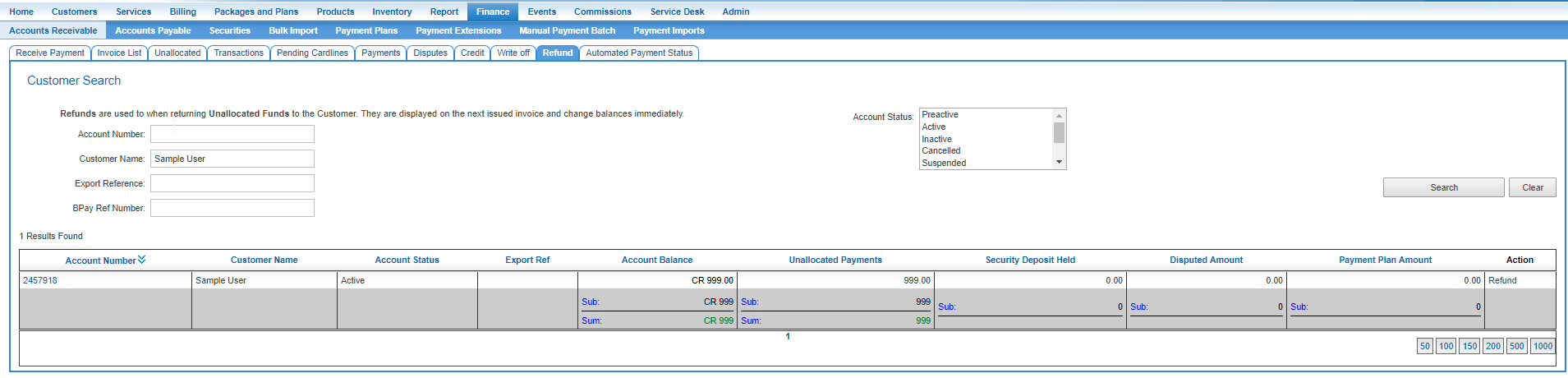
Refunds
Refunds made under Finance > Accounts Receivable > Refund
Refund Workaround
While Emersion doesn't support integrating refunds automatically with Xero, it is possible to mimic the behaviour by performing a refund in Emersion. You can then go to the overpayment in Xero and perform what is called a "Cash Refund" https://central.xero.com/s/article/Refund-a-sales-overpayment. Please note this is all predicated on the fact that the relevant payment in both systems is not allocated to an invoice. If this has already happened a refund will not be possible.
You can reverse the allocation of a payment in Emersion now, but this reversal is NOT replicated automatically in Xero and must be performed manually in Xero. Then you can proceed with the "refund" as per above.
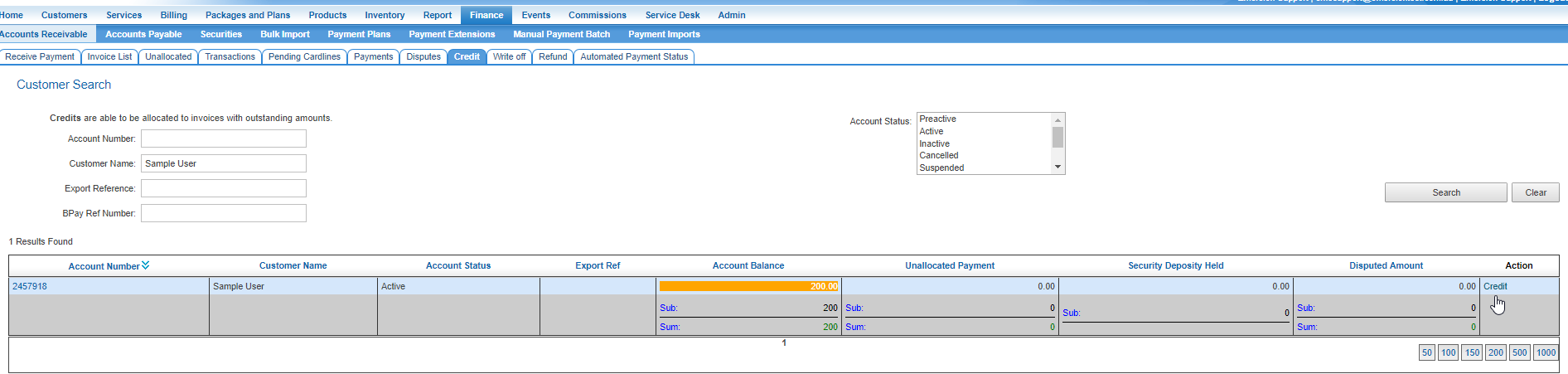
Credits
Credits applied to invoices under Finance > Accounts Receivable > Credit
Crediting Invoices - Alternate Methods
If you wish to credit an invoice you may wish to consider:
- Creating a new invoice with a credit cardline/balance, with the resulting "internal charge" payment being applied to the invoice you are trying to credit.
- Create a credit note direct in Xero and letting this transaction flow to the invoice in Emersion. See "Credit Notes" in the following documentation. https://resources.emersion.com/x/lIMwAQ
Write Offs
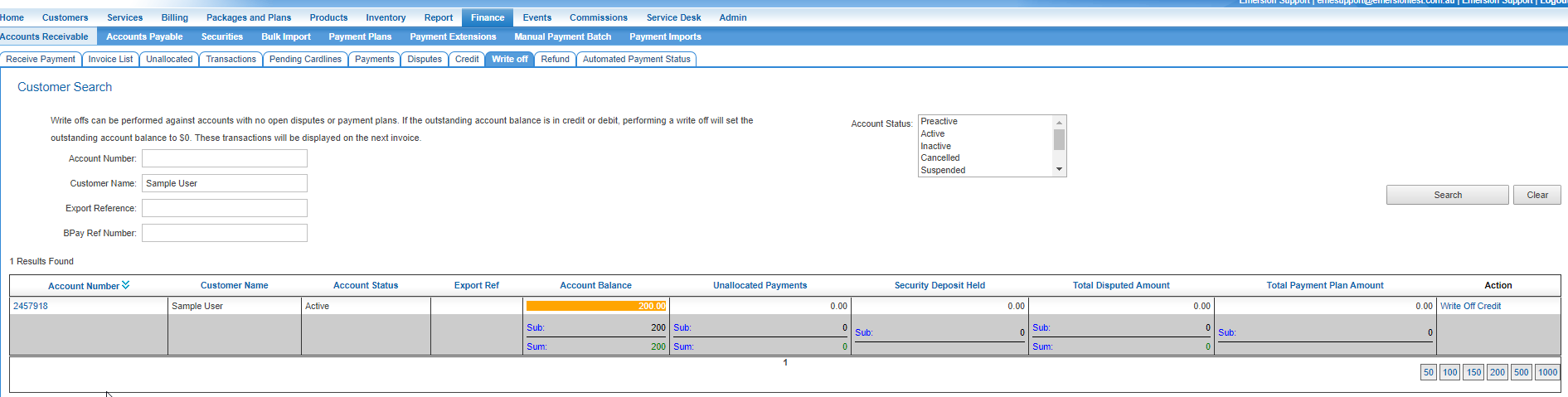
Write offs applied to accounts under Finance > Accounts Receivable > Write Off.