Problem
This article provides basic troubleshooting article for permissions by taking a typical use case and working through the problem and determining the access that is needed. For general information on how to edit the permissions and powers for a role, please see this article.
Use Case: Staff member Sally can see the service identifiers against a service subscription, but she can't mark them as inactive.
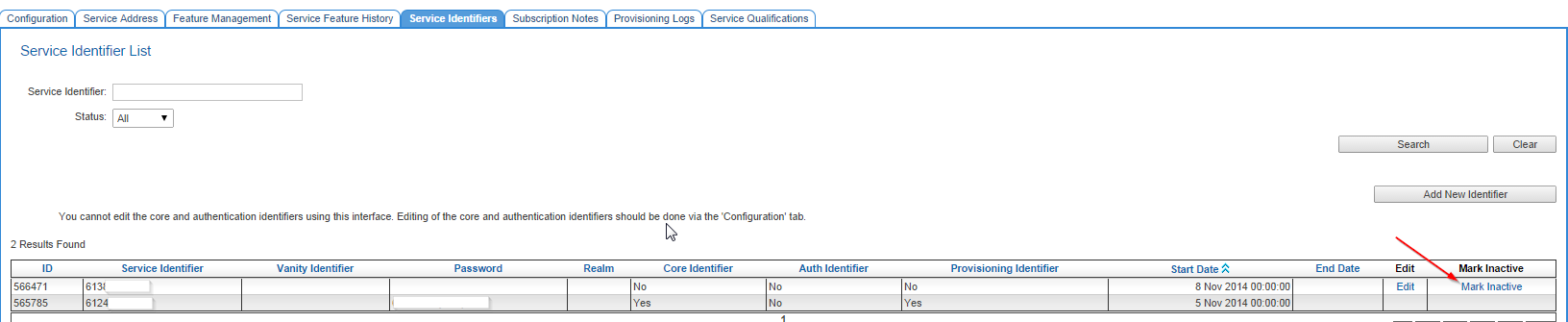
This is what Sally's screen would look like in this use case before the permissions were resolved. As we can see, there is no way in this screen to mark a service identifier as inactive. In terms of a typical software function, there is no way for Sally to edit a service identifier.

The reason a user has no access could be caused by
- a module permission
- a power
- an account group
If the issue is regarding a user being unable to access a particular customer's account, it is not an issue that can be resolves with the permission module, but an account group issue. This troubleshooting article is for issues surrounding access to a module, a feature or a function.
Assumptions
The user performing the troubleshooting has Administrator Full Powers access. Users cannot edit powers of roles that are included in the org unit they belong to. While it is possible to troubleshoot most of the way through this article, staff members are unable to change their own access privileges.
Solution
Before you begin troubleshooting any permission issue, it is recommended to have the data from two reports at hand. Both reports are found under Reports > List > Reference and are freely available to all service providers. Export these reports to CSV since they are easier to work with in an application like Microsoft Excel.
- Permission Group Details (id: 1193)
- Power List (id: 1194)
The first step, is to go to page where the issue exists. In this case, its the Service > Service Subscription > Service Identifier page.
It is not necessary to go to the same customer, same service subscription and see the same identifiers as Sally. Sally would see the same issue regardless of whose service identifiers she was looking at. What's important here, is that you go to the same page in Cumulus. If you have multiple service provider accounts, ensure you are logged into the same service provider account as Sally was when she encountered the issue.
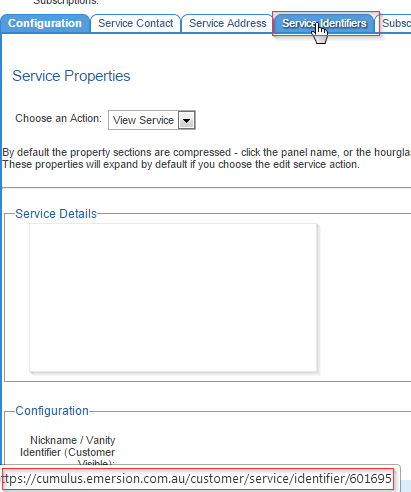
Then, move your mouse so it is placed over the tab itself. You will either see a URL pop up, or the URL may be in the status bar of the browser. This varies browser-to-browser, so refer to your specific browser's help if you do not see the URL.
Next notice the two words, separated by a forward slash immediately following the base URL for Cumulus ('https://cumulus.emersion.com.au/')
After the first forward slash, is the word 'customer'. This is the module.
The second is 'service'. This is the controller.
So we have
- Module: customer
- Controller: service
The next step is to review Sally's roles and determine which role(s) potentially need to be edited. To do that, we must first see what org unit she belongs to, as you can include multiple roles in an org unit.
Go Admin > Staff Users
Search and locate Sally's staff user account. Inspect the entry and note the Org Unit Sally belongs to.
Next, go to the Org Unit by heading to Admin > Org Units and Roles > Org Units
Drill down into Sally's org unit and see what Roles are IN the org unit.
Service Providers are welcome to create as many roles as they like and, roles can be included in as many org units that require it. Just remember that any change made to a role will affect all staff users belonging to an org unit that includes this role.
If there is more than one role included in the org unit, you will need to decide which role should be changed.
We have made a determination that the role that needs to be changed is the Support Staff role as all support staff in our fictional use case need access to mark service identifiers as inactive.
Go Admin > Org Units and Roles > Roles
Find the Support Staff role and drill down to open it.
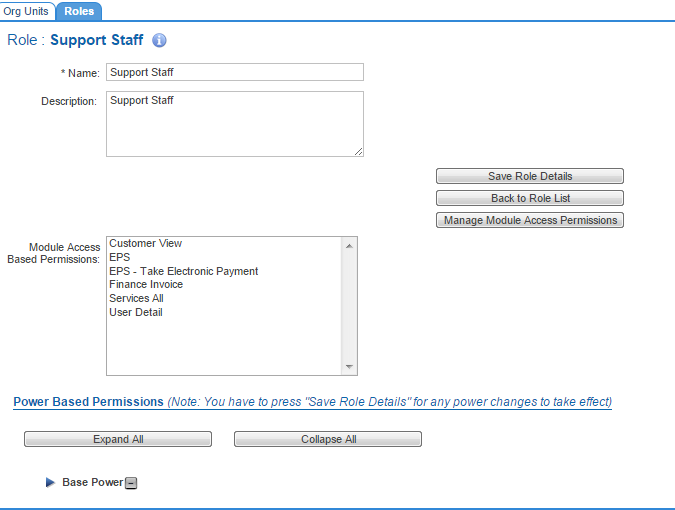
Review the Module Permissions that have been enabled. These are shown in the Module Access Based Permissions list box. So we know now that the following modules are enabled:
- Customer View
- EPS
- EPS Take electronic payment
- Finance Invoice
- Services All
- User Detail
Now, open the Permission Group Details report you exported earlier (if you haven't already).
The column headings have meaning.
Permission Group - This corresponds to the name of a module permission. In other words, these are all the names to the tick boxes seen under Manage Module Permissions Access
Now, recall the information we retrieved earlier from the cumulus page URL
- Module: customer
- Controller: service
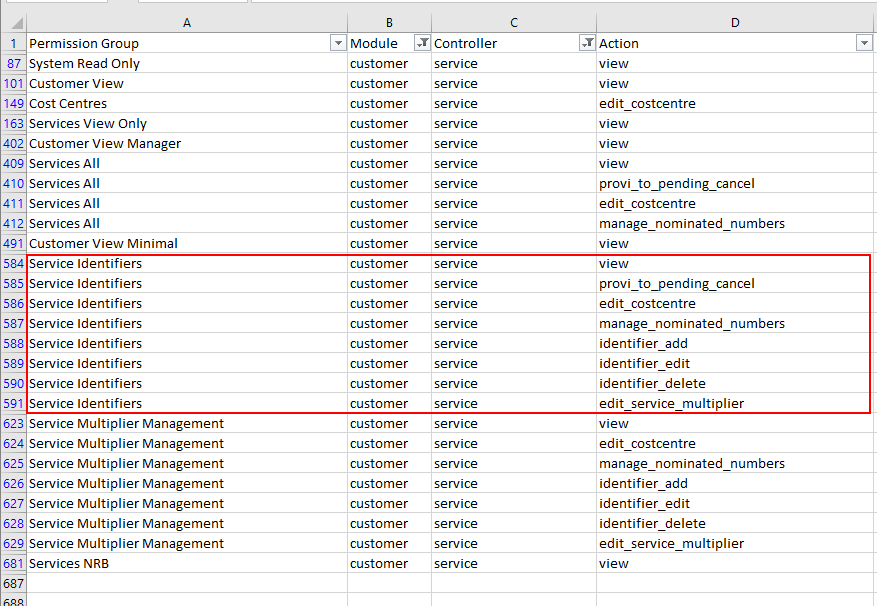
Find the matching rows for the module and controller columns. You can use the Filter function in Excel to highlight only those rows easily. Do not worry about the action for now.
Here is the filtered data set. The Permission Group column indicates that there is a module permission called 'Service Identifiers'. This matches the area of the system where Sally was having her access restricted. It is clear from this list that this is the module permission she needs.
To add the module permission to the role, focus back on Cumulus, then;
Under the role, click the Manage Module Permissions Access button. This will open a screen showing all module permissions.
Tick the Service Identifiers module permission (if it is not already ticked).
Save the page, then back on the role's page, press the Save Role Group button to apply the changes.
Have Sally test the change using her staff account.
Sally will have to log out and back in again after any change to permissions and powers for them to take effect.
If the module permission was already ticked, the issue is not caused by a lack of permission, but a lack of power.
Go Admin > Org Units and Roles > Roles
Reopen the role you had open before.
This time, we will review the powers of the role group.
Under the section Power-Based Permissions, press the Expand All button. All powers will be shown on screen in their hierarchy.
Use the browser's search facility (usually CTRL + F) and enter "Service Identifier" and hit the [ENTER] key.
The browser will highlight all powers whose name matches the search string. If you are using Chrome, this is what it looks like.
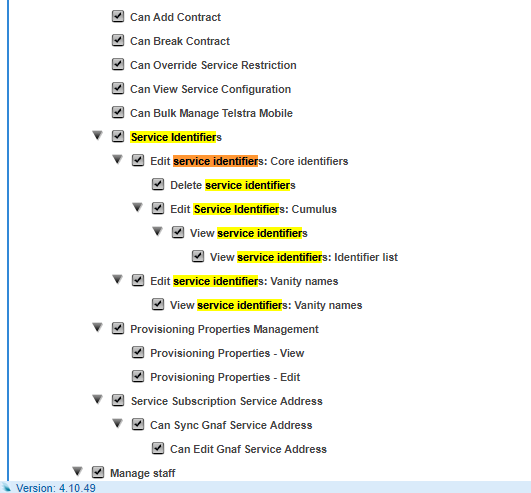
Ensure all the powers pertaining to editing service identifiers is enabled.
Scroll to the top of the page and press the Save Role Group button to apply the changes.
Have Sally test the change using her Staff account. With this permission and powers now enabled, Sally now has access to mark service identifiers as inactive.