Overview
This article covers how to update the payment statuses inside a direct debit payments batch file using the Manual Payment Batch module.
In order to update the payment statuses, the following tasks need to have occurred:
- a batch to have been created
- a payment file to be exported at least once and uploaded to your bank or financial institution
- a response from your bank that the payment has been received or was rejected
Update the Payment Statuses
To do this:
Finance > Manual Payment Batch
Click on the ID of the batch the payment is in. The user will be taken to the Manual Payment Batch details screen.
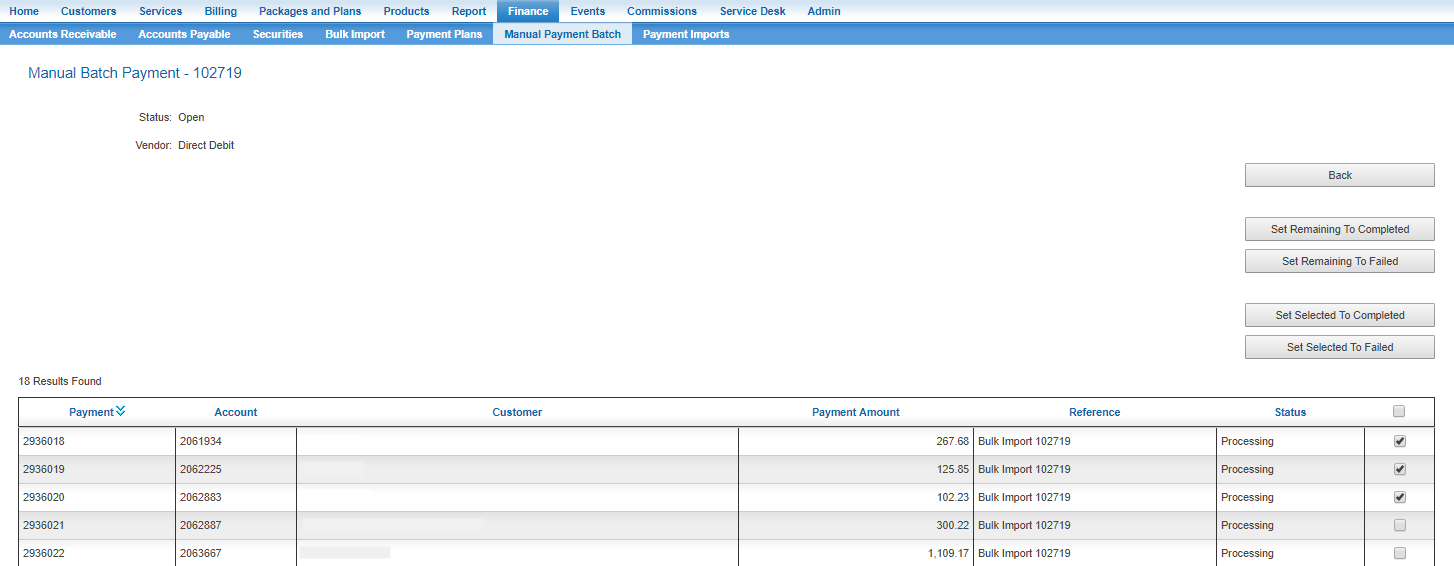
Note: You can only Fail or Complete a payment once a batch has been exported for the first time.
Payments within a batch are created in an Initial status. Once the batch has been exported, payments move into a Processing status.
If only some payment statuses are to be updated, flag them using the check box on the right hand column.
Perform one of the following actions.
| Action Button | What the button does | Notes |
|---|---|---|
| Set Selected to Completed | Marks checked payments to Completed. | |
| Set Selected to Failed | Marks checked payments to Failed. | Initially, this will actually just set a payment to a PreFailed status. Once a Batch has been closed, the payment marked PreFailed will be updated to Failed. |
| Set Remaining to Completed | Marks all payments still in Processing status to Completed. | |
| Set Remaining to Failed | Marks all payments still in Processing status to Failed. | Initially, this will actually just set a payment to a PreFailed status. Once a Batch has been closed, the payment marked PreFailed will be updated to Failed. |
The ledger journal will not be updated until the batch is closed. The system will then create an "unallocated" payment only. Automatic allocations to invoices require "Auto Allocate" be turned on.
What if I accidentally included one or more payments in a batch and no longer want them in the output file?
In this scenario, you have some payments in a batch that you have since marked Failed. You then re-export the batch file and it still includes the "Failed" payments.
The output file is dynamically generated and as such does not get "changed" ant any point.
Payments have been marked Failed are actually only set to PreFailed and will continue to output these in an exported file. The reason for this is because including an account in a manual payment batch essentially locks in a payment and the result of that bank upload file generally dictates which status you move a payment into.
In the current implementation there is no way to back out or "abort" a payment that has been included in a batch.
If this is stopping you from uploading - or you have voluntarily chosen to not upload - this file to your bank, you will be required to mark ALL payments as Failed and Close the current batch and start a new one.
Payments in status Failed are not stamped to the ledger and have no bearing on an account's balance and allow the automated system to generate new payments depending on the account's payment method configuration (including another manual payment batch if required).