| Current_page_link | ||
|---|---|---|
|
Overview
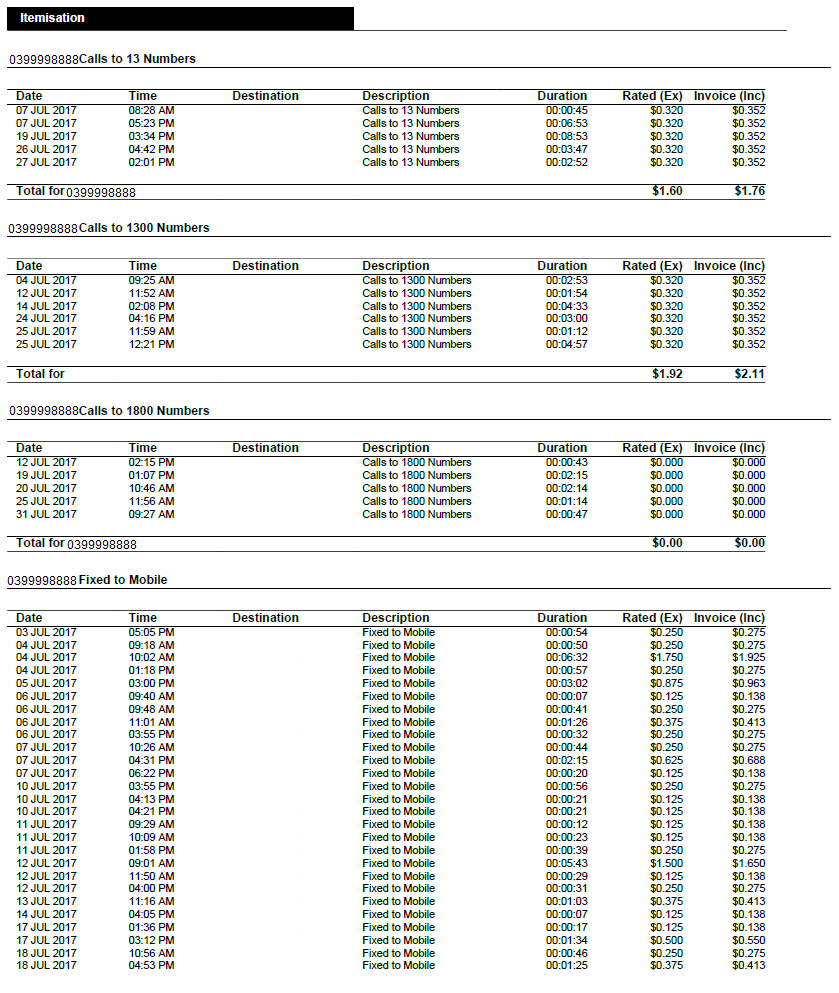
This article covers how to configure an invoice with call itemisation if the customer purchases telephony services. The call itemisation settings section of the invoice layout provides the ability to define how much (or how little) of the usage should be itemised on the invoice.
| Warning |
|---|
Invoices with more than 6000 lines will not render in a PDF. Instead, summary invoices will be produced. Emersion recommends to Service Providers who have customers with large invoices advise their customers to access and download their usage data via the End User Portal. |
Admin > My Invoice Template > Invoice Layout > Call Itemisation
Tariffs that are added to the call itemisation list will be summarised in the Package Summary section of the invoice and will not be itemised. You could
| Note | ||
|---|---|---|
The tariff listed here is, by default, the MEDIATED TARIFF. That is, the tariff we have allocated to the individual usage record as received directly from the carrier. During rating, if no rate can be found we continue looking "up the tariff tree" to find an appropriate rate. Once one is found, this is then called the RATED TARIFF and therefore may not be exactly the same as originally received from the carrier. Be sure to double check the View Usage area under a service subscription (or click View Usage from Manage Invoice when viewing a usage cardline) to confirm the mediated tariff MEDIATED TARIFF ID for the usage you wish to exclude from itemisation.
|
To add a tariff to the call itemisation list:
- Choose the Service Type Category from the list available.
- Select the tariff or tariff group from the list available.
- If another level of tariffs reside under the tariff group chosen above, you can select from this list to refine your selection further.
When you are happy with your selection, click the Add Itemisation button.
Related Pages
| Content by Label | ||||||
|---|---|---|---|---|---|---|
|