Overview
This article covers how to configure the organisation details section of an invoice layout. Service providers should complete as many fields as possible in this section.
Admin > My Invoice Template > Invoice Layouts > Organisation Details
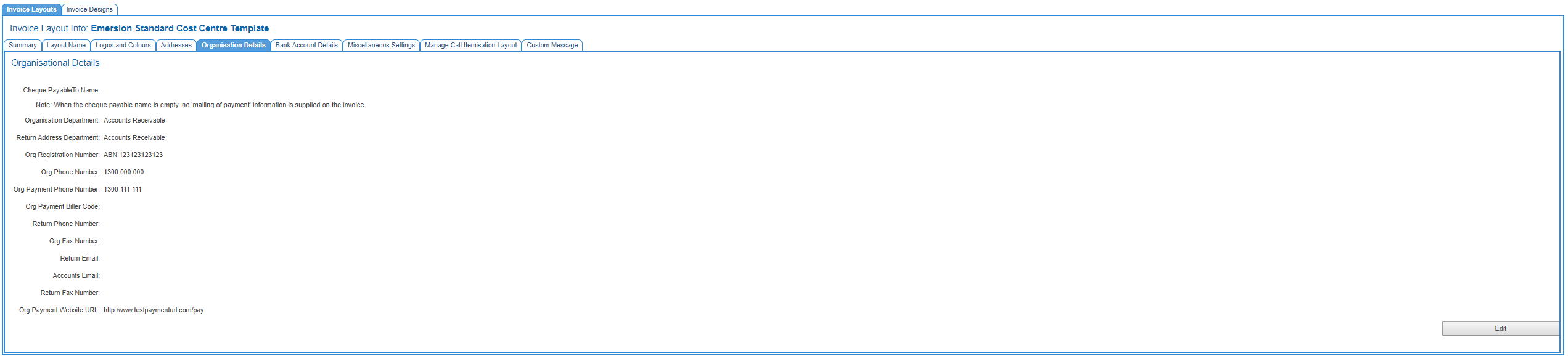
Cheque Payable To Name
If payment by cheque is available to customers as a payment option, enter name that cheques are to be made out to. If this field is left empty, the mailing your payment section will not show on the invoice, even with the Show Pay by Cheque design setting on.
- Organisation Department
Select the department responsible for accounts receivable from the drop list. This contains the organisational units that are set up.
- Return Address Department
Select the department responsible for correspondence from the drop down list that is to be displayed on the invoice.
- Org Registration Number
Select your company ABN/ACN from the drop list. This list will contain the company registration numbers entered against your service provider account.
> MANDATORY! If this is left empty, your invoices will fail to render.
- Org Phone Number
Enter your company’s main contact phone number that is to be displayed on the invoice.
- Org Payment Phone Number
Enter your company’s accounts receivable phone number that is to be displayed on the invoice.
> Entering data into this field will also enable the Pay By Phone section of the invoice to be displayed. To remove the section, remove all data from the field.
- Return Phone Number
Enter your company’s return phone number that is to be displayed on the invoice.
- Org Fax Number
Enter your company’s fax number that is to be displayed on the invoice.
- Return Email
Enter your company’s primary email address that is to be displayed on the invoice.
- Return Fax Number
Enter your company’s return fax number that is to be displayed on the invoice.
- Org Payment Website URL (Credit Card section)
Enter your company’s payment web site that is to be displayed on the invoice. Entering data into this field is one of the criteria that allows the the Credit Card section of the invoice to be displayed. In addition, global credit card surcharges need to be configured for the service provider. See this article to learn how these are set.
When you have entered in all the information, and are happy with the changed, click the Save Organisational Details button to save the changes.