Overview
This page assists users to apply images and a custom colour scheme to an invoice layout. These logos and colours apply only to invoice templates and appear no where else. Images can be applied to multiple invoice layouts.
We strongly advise using print quality images that are no less than 250dpi for all images that will go onto invoices. If you use images of a lower resolution, images will appear pixelated or 'fuzzy' when the invoice is printed. Emersion cannot increase the resolution of images or fix images of poor quality. Contact the person or company who manages your logos and branding if you do not have a print-quality images. |
Admin > My Invoice Template > Invoice Layout > Logos and Colours
The page will open in view mode. Click the Edit button to put the page into Edit mode.
About Image Dimensions
Images uploaded to Cumulus are not automatically resized to fit a particular section. If your image is too large to fit into the section of real estate where images are displayed, it will be very obvious when the invoice is printed. In this case, you will need to either:
- resize it to the exact maximum dimensions stated on the screen, then upload it again.
- set the image dimensions in Cumulus. The system will resize the image to these dimensions.
When resizing images, take care to maintain the aspect ratio. Image can look 'warped' or 'skewed' if you get your image dimensions incorrect.
A formula is provided below to assist you with coming up with correct aspect ratio image sizes:
New Image Height = (Original Height / Original Width) x New Width |
Here's how to apply the formula to an original image that is 1200h x 1600w, assuming a desired width of 400w
(1200H / 1600W) x 400W = 300H |
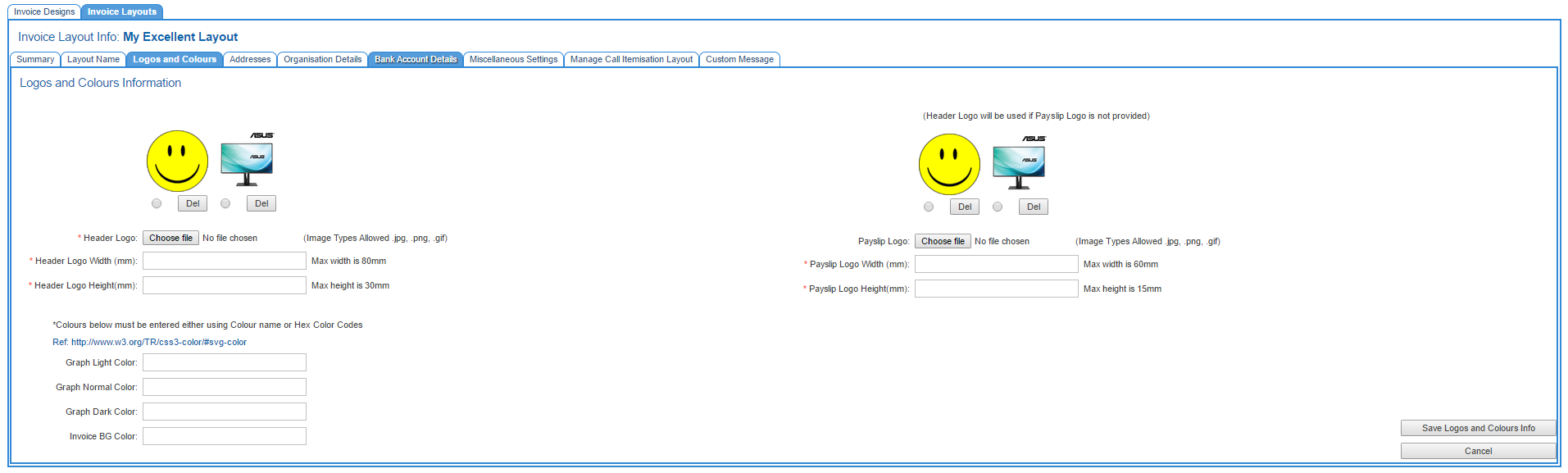
Header Logo
This logo appears in the top left of the invoice.
When the page is put into EDIT mode, any logos used in other invoice layouts will become visible.
- If the logo you want to use for this layout is available, click the radio button under the image to explicitly select it. The button for each image is located to the left of the Del button.
- If the logo is not available, click the Browse button. Search for a select the file that will be uploaded. The file name of the image will appear in the field until this page is saved.
In order to appear correctly, it is necessary to enter the file dimensions in mm (millimeters)
Enter the width of the logo into the Header Logo Width (mm) field. The maximum supported width is 80mm.
Enter the height of the logo into the Header Logo Heights(mm). The maximum supported width is 30mm.
Pay Slip Logo
This logo appears near the bottom of the invoice along with the remittance advice. The page will show any logos used in other invoice layouts. If the logo you want to use for this layout is available, click the radio button under the image. If the logo is not available, click the Browse button, find and select your logo. The file name of the image will appear in the field until this page is saved.
Pay slip Logo Width (in millimetres). The maximum width is 60mm.
Pay slip Logo Height (in millimetres). The maximum height is 15mm
Enter the file dimensions in mm (millimeters).
Colour Scheme
Under the header logo there are a number of fields that are used to apply a customised colour scheme. These fields support the standard colour name or the HEX (hexadecimal) colour values.
Up to four colours can be defined.
- Graph Light Colour
- Enter the Graph Normal Colour.
- Enter the Graph Dark Colour.
- Enter the Invoice BG Colour for the invoice background.
Please ensure you enter HEX values with the hash prefix. For example #00008B for "darkblue" |
When you have completed your customisation of the logos & colours, click the Save Logos and Colours Info button.