Overview
This article contains a step-by-step guide on how to reverse or void a payment within Cumulus.
Reverse or Void a Payment
- Go to Finance > Accounts Receivable > Payment screen.
- Search for the payment you wish to reverse or void and click on the Payment ID link
- Click the Reverse Payment button
The Reverse Payment dialogue will appear
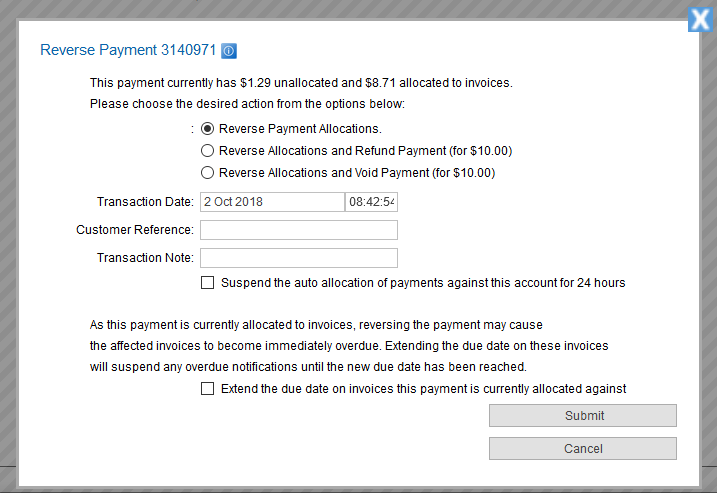
From this page, users can choose the following options:
| Field | Description |
|---|---|
| Reverse Payment Allocations | This will reverse allocations of this payment to invoices that it may be allocated against. If part of the payment has been refunded, the refunded amount wont be touched. Once complete this payment can then be re-allocated to invoices as required. |
| Reverse Allocations and Refund Payment (for $xx) | This will reverse all allocations of this payment to invoices and create a refund for the full amount of the payment. Choosing this option will then display the Refund Payment Method and Refund Type. |
| Reverse Allocations and Void Payment (for $xx) | This will reverse all allocations of this payment to invoices and create a voidUnallocatedPayment transaction for the full amount of the payment. The payment status will then be Void. Choosing this option will Void Type. |
Suspend the auto allocation of payments against this account for 24 hours
Emersion supports a process of automatically allocating the unallocated amounts of payments to invoices, and this is normally enabled for accounts. If the user is just reversing the allocations of a payment with the intention of allocating the payment to different invoices, or performing other actions with the payment, the user can tick the option Suspend the auto allocation of payments against this account for 24 hours.
When the affected account is loaded, the following warning will be displayed in the header above the account:
This account has the auto allocation of payments enabled, however this has been suspended until 01/01/2018 12:00.
Where the payment is allocated to invoices
If the payment is allocated to invoices, a warning message will be displayed to the user.
As this payment is currently allocated to invoices, reversing the payment may cause the affected invoices to become immediately overdue. Extending the due date on these invoices will suspend any overdue notifications until the new due date has been reached.
You can use the check box Extend the due date on invoices this payment is currently allocated against to update the due date of invoices.
Once this is ticked, use the date picker to choose a new due date.
Only invoices that would now be overdue as a result of the payment reversal are affected. Invoices that are due in the future will not be affected. |
Partially Refunding a Payment
In performing a refund, the user has the ability to refund only part of the value of the payment. The option to Refund the Payment in the Reverse Payment window above does not allow the user to specify an amount. The full amount of the payment available is refunded.
If only part of the payment needs to be refunded, please follow the steps below:
- Go to Finance > Accounts Receivable > Payment screen.
- Search for the payment you wish to reverse and click on the Payment ID link
- Click the Reverse Payment button
- Ensure that No further action. Just reverse the payment is selected.
If the payment is currently allocated to invoices, the user will need to decide what happens to invoices that will be overdue by this action as per the Where the payment is allocated to invoices above.
- Click Submit.
- Once the payment has been refreshed, click Refund Payment and follow the normal refund steps.
Users with Xero Integration
Users with the Xero Integration module must perform the payment reversal or void the payment in Xero after performing it in Emersion. The Xero integration will not automatically synchronise these activities.
If the void or reversal is not performed in both systems, the customer's account will not reconcile. |