Overview
This article covers how to edit a system event mapping to enable, disable and control the behaviour of an event.
To understand what an event mapping is and why it is important, please refer to this article. For the Events home page where you can find comprehensive information about events, click here.
Managing an Event Mapping
To start, go to:
Events > Templates > Mappings
The Event Action Mappings List page will be presented to the user showing a list of all event mappings. If more than one event action is available per event type, one mapping per action will be visible.

Viewing a Mapping
For a read-only view of the detail of the mapping, click the View link from the Action column on the right-hand side of the mappings table. The user will be taken to the page where they can view further information of the mapping without the ability to edit it.
Configure an Event Mapping
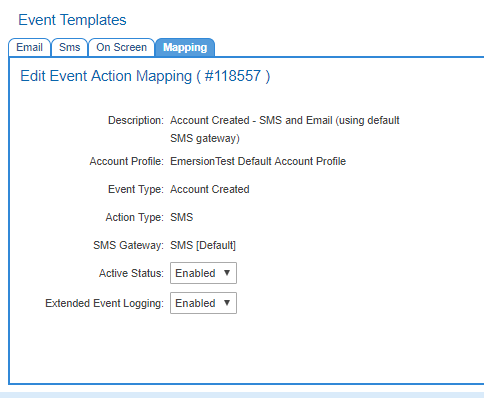
On the configuration page of an event mapping, users can:
- enable an event so that it will fire if its triggers are met.
- disable an event so that it will not fire, even if its triggers are met.
- enable or disable extended logging.
SMS Configuration Options
If the Action Type is SMS, the user may be able to edit the SMS gateway provider the event will use to send the SMS.
Changing the SMS gatway used to distribute the messages requires
|
By default, all SMSs are sent using Emersion's SMS gateway provider.
Enabling and Disabling the Event (Action) Mapping
To start:
Click the Edit link under the Actions column. The user will be taken to the page to edit the mapping.
Toggle the Action Status from Enabled to Disabled (or vice versa) to alter the setting.
Enabling and Disabling Extended Logging
On the same page, toggle the Extended Event Logging from Enabled to Disabled (or vice versa).
When the changes have been made, press Save.
Disable All Events
To easily and quickly disable all event mappings so they cannot be triggered, click the Disable All Event Mappings button.